What it does
Allows you to change the name of spot colors in a document.
Note: From version 12 update 2 onwards, you can use regular expressions to define the source
and target color. This is useful to rename variants of the same color, e.g. to
rename “Varnish0”, “Varnish1”, “Varnish23” (i.e. "Varnish" followed by one or
more digits) to “Varnish” (without any digits). To do so, build a rule that
renames "Varnish([0-9])+" to "Varnish".
How to proceed
To rename one or more spot colors in a document
- Select Rename spot color.
- Optionally, select the Use regular expressions checkbox.
- Click Add.
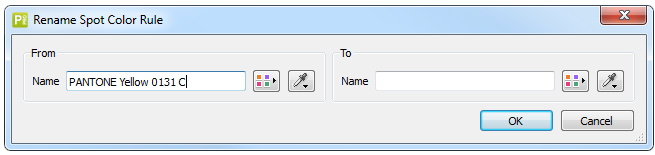
- In the Rename Spot Color Rule dialog:
- In the left part (under From), enter the name of the spot color that should be renamed.
- In the right part (under To), enter a new name for the selected spot color.
- Click OK.
- To create another rule (i.e. to rename another spot color), repeat steps 3-5.
Example
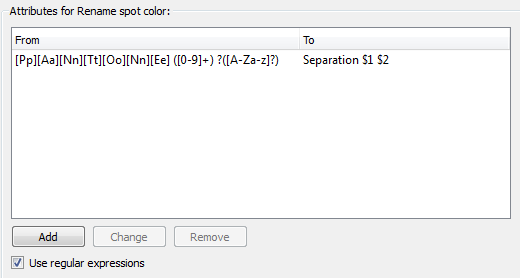
The above rule will rename Pantone to Separation in spot color names like Pantone 0123 U (which will then become Separation 0123 U).