What it does
Allows you to select potential trim or bleed marks with a certain color.
How to proceed
- Indicate which marks you want to select: trim marks, bleed marks or both.
- To help PitStop detect the trim marks, specify the potential color of the
marks, by choosing one or more of the following:
- 400% CMYK
- Separation All (registration)
- 100% black
- A specific color
- If desired, specify how much the marks are allowed to deviate from the
expected position:
- The unit is the unit set in the PitStop Preferences (Units & Guides category), for example: cm or pt
- The maximum value is 2.7 pt; if you enter a higher value, it is automatically reset to 2.7 pt or an equivalent value, if you're using a different unit.
 and
select the appropriate color.
and
select the appropriate color. to grab
the fill or stroke color from the selection.
to grab
the fill or stroke color from the selection.Example
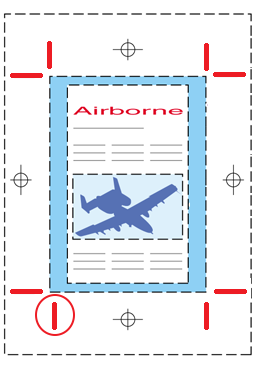
In the image below, the red marks are detected as trim marks, although the position of
the vertical marks in the top and bottom left corner is not as expected (they are
not exactly on one vertical line). In this case, the deviation (= difference between
the position of both marks) is less than the specified threshold.