What it does
Inserts a chosen object (a line, a rectangle, an ellipse or a text) and positions it relative to one of the page boxes. This can be useful to add information to be trimmed off later.
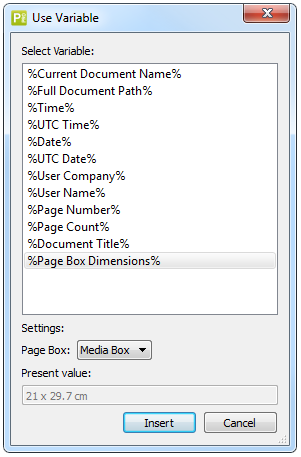
Note: If you're inserting text, you can make use of predefined variables, such as
the name of the document, the author, the page number, page count, the page box
dimensions, ...See the example below.
The Fill and Stroke tabs allow you to define the color of the objects you are inserting.
Example
To add the width and height of the media box to your document, proceed as follows:
- In the attributes for the Add object Action, on the Object and position tab, choose Add text in foreground.
- Click the Variable button.
- Select %Page Box Dimensions%.
- Select the page box of which you want to insert the dimensions, in this example Media Box. The current value is shown.
- Click Insert.
- Select a font and a font size and determine where the text must be inserted in the document, for example in the center of the media box with a particular offset.
- Specify whether or not to take into account page rotation and page scaling factor if applicable.
Below is an example of the dialog that allows you to insert predefined text variables.