Belongs to
- Category: Position/Size; Page
- Type: Changes
- Since Version: 2018
What it does
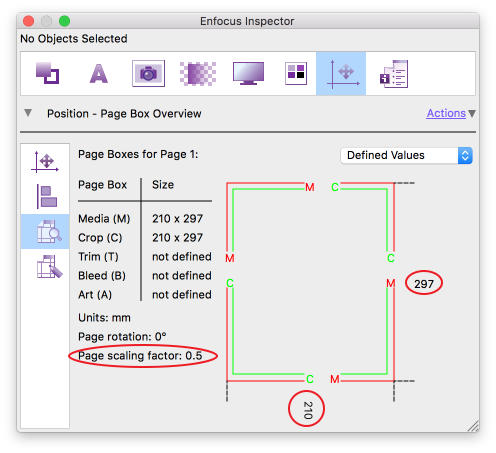
Allows you to scale the print size of a page. There are three ways to rescale:
- Set Optimal Value Automatically: Rescales the page based on the media box of the document and within the 200x200 inch limit - the maximum Acrobat size. If a document is larger, PitStop applies the appropriate page scaling factor to bring the size down within the limit.
- Set Scaling Factor to: Rescales by setting the page scaling factor to a certain value.
- Multiply Scaling Factor by: Rescales by multiplying the existing page scaling factor.
For example, if no page scaling factor was defined (meaning that the page scaling factor =
1):
- To print a page to half its size, set the page scaling factor to 0.5
- To print a page to twice its size, set the page scaling factor to 2.
If a page has a scaling factor of 2, to print it to twice its size, multiply the existing page scaling factor by 2 (resulting in page scaling factor 4).
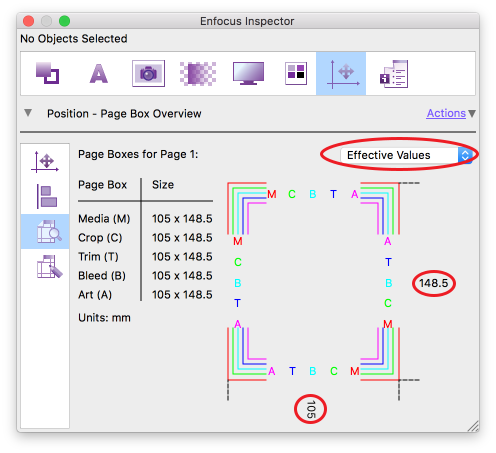
Note that it is also possible to change the defined values while keeping the effective values; to do so, select the Keep Effective Values Constant checkbox.
Remember that the page scaling factor (and the defined values) as well as the effective values can be viewed with the Enfocus Inspector as shown below.