Belongs to
- Category: Color
- Type: Selections
- Since Version: 2018
What it does
Selects black and white images.
You can set a tolerance (an allowed deviation from '100% gray', default tolerance is '3') and
tell PitStop how to determine what black and white is:
- Calculate image average: Take the color value of each pixel of the image (color and gray values) and calculate the average of this; decide based on this value whether or not it is "black and white".
- Look for colored areas: Search for colored areas and take only the values of colored pixels to decide whether or not it is "black and white". If most of the colored values are gray (or close to gray/taking into account the chosen tolerance), the image will be considered black and white; otherwise it will be considered a color image. This method will detect images that are mainly black and white but with a small colored area.
Remarks
- This Action works on all color spaces, on images, text and linear and radial shadings.
- Spot colors are always considered colored images, regardless of their name (e.g. even spot colors with the name 'black' will be considered colors).
Use Cases
- In digital printing, to save on ink, black and white images are preferably printed using black ink only. This Action provides an extra check to distinguish between black and white images with minor color tints (safe to use black) and black and white images with colored areas that definitely need color ink.
- Black text or thin lines (coming from CMYK) can be safely remapped to black only, thanks to
this Action, which allows to filter real black text from colored text. Example Action
List:
select text
select black & white objects
AND
remap color  <!--  target color black -->
Examples
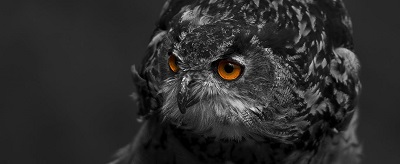
The following image will be considered 'black and white' based on the average image calculation, but 'colored' based on the area calculation.
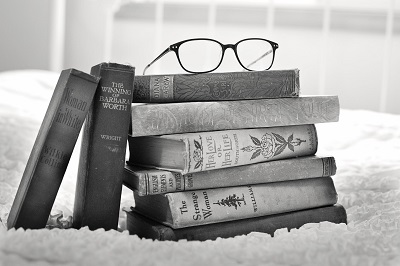
The image below is clearly 'black and white' and will be selected, regardless of the calculation method.