By default, after you have run an Action List or a Preflight Profile, the Enfocus Navigator
appears and you can click to generate the report and to choose the preferred report style. 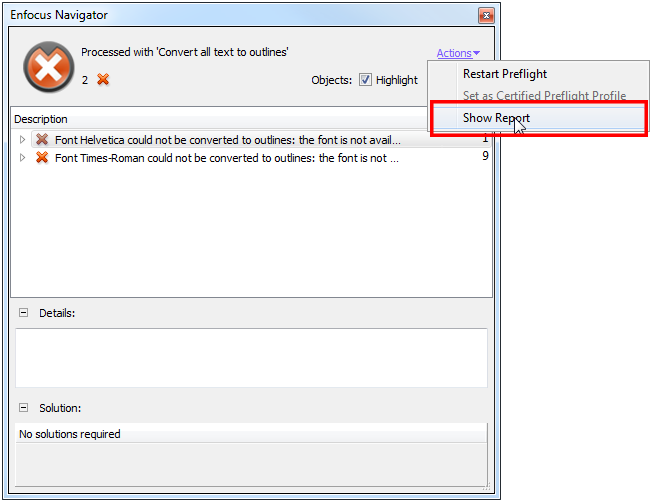
However, it is possible that:
- The Enfocus Navigator does not appear, e.g. because you have run an Action List with the option Show results set to Never or On error (if there are no errors in the processed PDF).
- The report is opened and shown immediately, so that you don't have the chance to
choose a report style. This has to do with your PitStop Pro user preferences.To display the list of reports to choose from, you have several options:
- Change your PitStop Pro user preferences, to make sure the Enfocus Navigator is displayed
by default after running a Preflight Profile. You will then get the chance to choose the
preferred template on a case-by-case basis.
- Open the PitStop Pro Preferences.
- Under Category, select General.
- Under Processing, select After Processing: Show Navigator (instead of Show preflight report).
- You can leave the user preferences as they are, but change the default report style to
your custom template. The report will still be opened automatically, but your customized
report template will be used. Proceed as follows:
- Open the PitStop Pro Preferences.
- Under Category, select General.
- Under Processing, make sure After Processing: Show preflight report is selected.
- From the Report Style list, select your customized template.
- Change your PitStop Pro user preferences, to make sure the Enfocus Navigator is displayed
by default after running a Preflight Profile. You will then get the chance to choose the
preferred template on a case-by-case basis.