What it does
Removes text, image, line art or shadings positioned inside or outside a specific area, with the option to remove overlapping objects as well.
Example
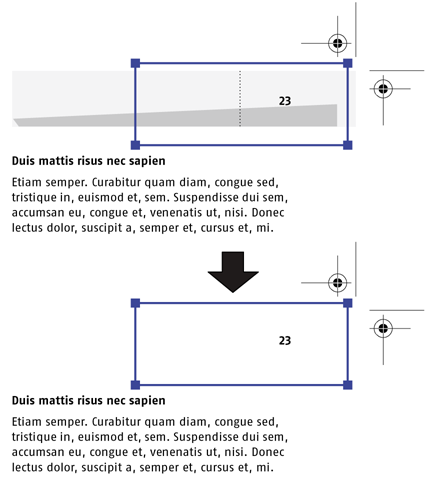
Suppose you have a PDF document in which the header of each page contains a page number on a shaded line-art background. You can use this Global Change to remove the line art with shading, but keep the page numbers.
How to proceed
- Under Remove Objects, select the items you want to remove:
- Text
- Image
- Line Art
- Shading
- Define the area inside or outside which you want to remove something.
- Select the option to remove objects inside or outside the defined area.
- To include overlapping text or object segments, select Overlapping the area.
 .
 .