Belongs to
- Category: Remove
What it does
Removes text, image, line art or shadings positioned inside or outside a specific area, with the option to remove overlapping objects as well.
Example
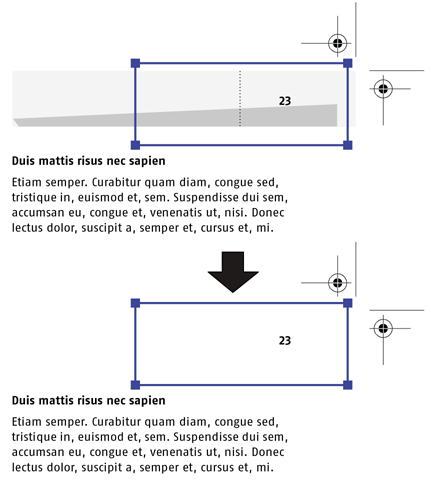
Suppose you have a PDF document in which the header of each page contains a page number on a shaded line-art background. You can use this Global Change to remove the line art with shading, but keep the page numbers.
Figure 1. Removing line art with shading inside and overlapping the selected
area but keeping the text
How to proceed
- Under Remove Objects, select the items you want to remove:
- Text
- Image
- Line Art
- Shading
- Define the area inside or outside which you want to remove something.
- If you want to select the area in the PDF:
- In your PDF document, draw a rectangular area on the page using the Select Rectangular Area tool
 .
. - In the Global Change Editor, click the Grab button
 .
. - Select Grab Area From Selection. The X and Y coordinates and the width and height are filled in automatically.
- In your PDF document, draw a rectangular area on the page using the Select Rectangular Area tool
- If you want to define the area by a page box:
- In the Global Change Editor, click the Grab button .
- Select Grab Area From Page Box.
- Select the desired page box, for example the Media Box.
The X and Y coordinates and the width and height are filled in automatically.
- In the Global Change Editor, click the Grab button
- If you want to select the area in the PDF:
- Select the option to remove objects inside or outside the defined area.
- To include overlapping text or object segments, select Overlapping the area.