Belongs to
- Category: Page
What it does
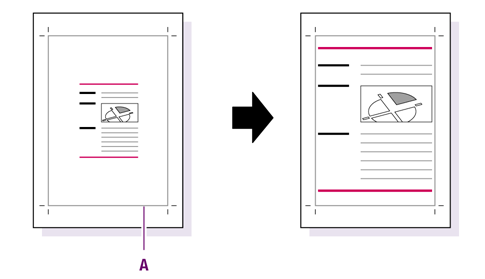
Scales the page content to fit a given page box using a point of that page box as anchor point. You can add extra margins, if necessary.
Figure 1. Scale the page content to fit the size of the trim box (A).
How to proceed
- Determine which page box the page content should fit and select the preferred anchor point, for example: scale page content to fit the trim box, anchored at the center.
- To add extra margins to the page content, select the corresponding option and enter the
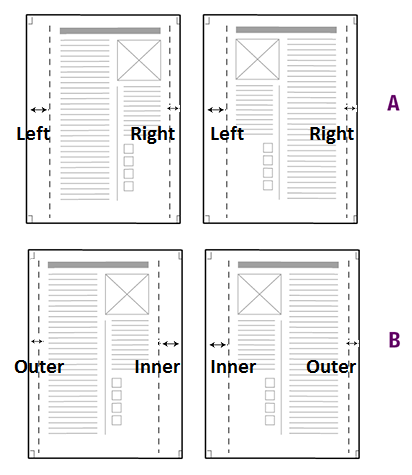
preferred values. Note: The option Mirror horizontal margins determines if you have to specify values for a left and right or an outer and inner margin (see screenshot below).
- To make sure that even and odd pages are mirrored, select Mirror horizontal
margins. This is recommended, if the left and right margin have a different size.
A = Mirror horizontal marges is not selected. Margins of odd and even pages are the same; the left margin is larger than the right margin.
B = Mirror horizontal marges is selected. Odd and even pages are mirrored; the outer margin is smaller than the inner margin.
- If you don't want to enlarge the page box, select Only allow shrink to fit.