If you have bought PitStop Pro subscription, you have received a subscription ID. This ID has to be activated in order to start your contract term.
To activate your subscription ID
- Go to the Account section on the Enfocus website.
-
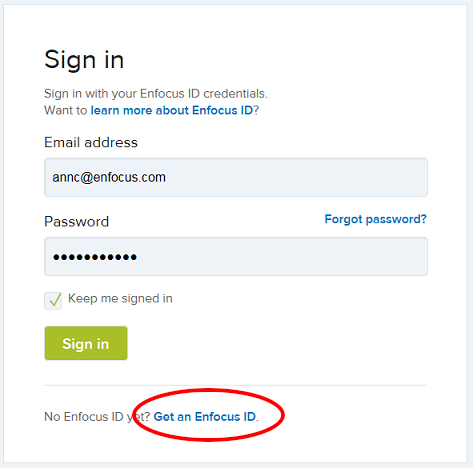
Sign in using your Enfocus ID.
The Enfocus ID is a new account that replaces all former Enfocus accounts (the webshop, product activation and support portal account). From now on, there's only one account for all communication with Enfocus. Note that there is no way to convert older accounts into an Enfocus ID; even if you have already an Enfocus activation account, you are asked to register once again. Registering is very easy; just click the Get an Enfocus ID link and follow the on-screen instructions.
- Click Activate a subscription.
-
Enter the subscription ID and click Activate.
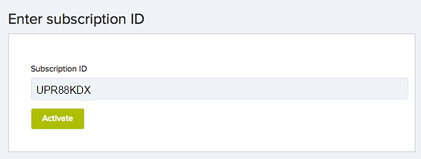
The new subscription is displayed in the overview. You can immediately start working with PitStop Pro. - Open Adobe Acrobat and click a PitStop Pro tool (or an entry in the PitStop Pro menu in the toolbar of Adobe Acrobat). The About Enfocus PitStop Pro dialog pops up.
-
In the License tab, enter your My Enfocus ID credentials (email address and
password) and click Sign In.
In the background, PitStop Pro checks your license and allows access to
the software as long as the contract term hasn't expired. If it has expired
(because the subscription has been cancelled), you will get a warning.
Note that you remain signed in with your Enfocus ID: you won't have to enter your credentials next time you launch PitStop Pro. However, if you haven't used the software for a longer period (more than one month), you may be asked to sign in again, so PitStop Pro can check if your license is still valid.
Note: If you want to use your subscription license on another computer, you should just sign out (from within PitStop Pro), which frees up your license, and sign in on that other computer.