Use this task, for example, when you want to move the license to another system.
In addition to your offline system on which PitStop Pro is installed, you must have a system with internet access to communicate with the Enfocus web server.
To deactivate PitStop Pro
-
On your offline system with PitStop Pro:
- In the About Enfocus PitStop Pro dialog box, select the product key you want to deactivate.
- Enable the Off-Line Mode option at the bottom of the pane.
- Enable the Export license information during deactivation option. This enables you to download the license file, so that you can reactivate it on another system.
- Click Deactivate.
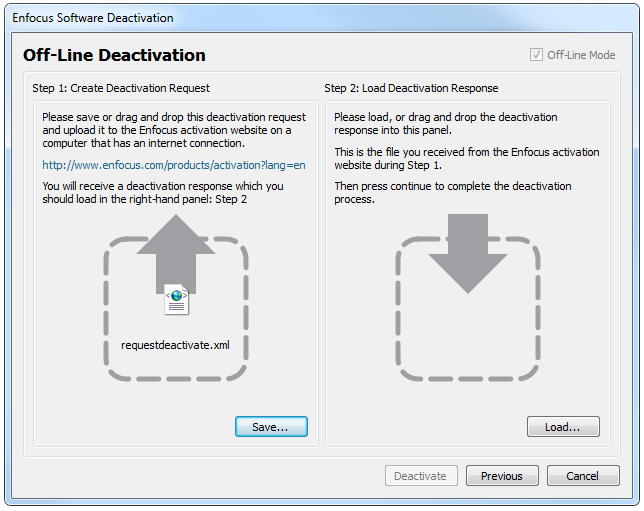
- Browse to a download location, and click Save. PitStop Pro creates a license file: LicensesBackup.html, and opens the following dialog box:
- In Step 1, click Save. PitStop Pro creates a file: requestdeactivate.xml.
-
Make requestdeactivate.xml available on your online
system.
Example: You can copy requestdeactivate.xml to a USB stick, and connect the USB stick to your online system.
-
On your online system:
- Go to http://www.enfocus.com/products/activation?lang=en
- Upload requestdeactivate.xml, and click Continue.
- Click Continue to confirm. The Enfocus web server creates a file: deactivation-response.xml.
- Download the file.
-
On your offline system with PitStop Pro:
- In Step 2, upload deactivation-response.xml.
- Click Deactivate. Your system deactivates PitStop Pro.
- Click Close.