This topic explains how to duplicate a flow and change the sorting method from sorting based on file type to sorting based on file name pattern.
In this example, if the file name contains Part1 (or part1), it should be moved to the PDFs folder; all other files should be moved to All other files.
-
Duplicate Tutorial 1 Flow.
- In the Flows pane, click Tutorial 1 Flow.
- Right-click and select Duplicate flow.
-
Rename the flow.
- In the Properties pane, select Name.
- Replace Tutorial 1 Flow [Copy] with Tutorial 1B flow.
-
Define the new settings for sorting.
- Select the connection between Sort for PDF and PDFs.
- In the Properties pane, click the Include these jobs field.
-
Click
 and select Define file patterns from the pop-up
menu.
and select Define file patterns from the pop-up
menu.
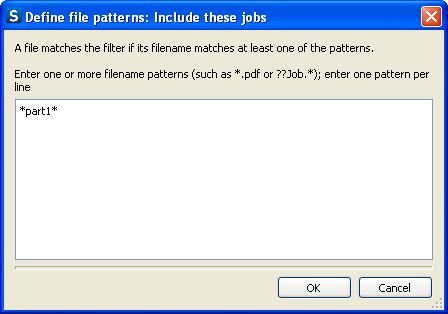
- In the Define file patterns: Include these jobs dialog, type *part1* and click OK. The asterisk (*) is a wild card character. The case of the characters is not taken into account; *part1* will match Part1, part1, PART1 and so on.
-
Check your results.
- Save and activate the flow.
- Add relevant input files, for example the two tutorial 1 PDF files.
- Check the content of the PDFs and All other files folder (in the Jobs pane).