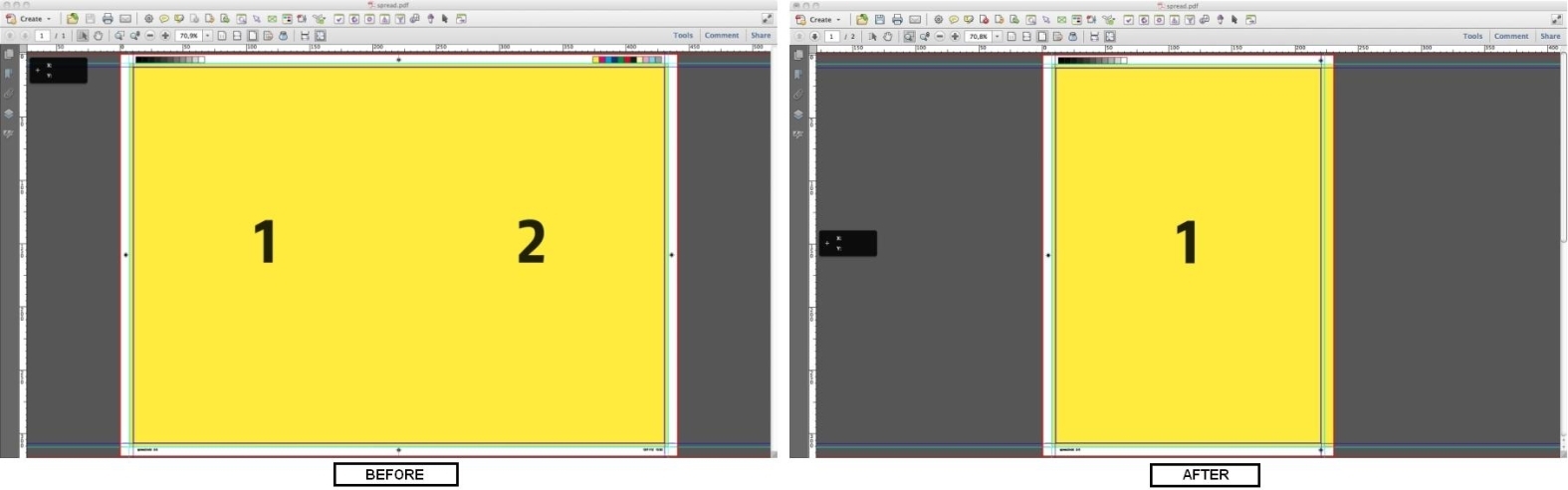
This Global Change allows you to split pages in half. A page (or pages) can be split horizontally, vertically or depending on the orientation defined for the page (example: portrait or landscape). You can also select the page box you want to base this split on.
In the Global Changes window, navigate to to open the Enfocus Global Change Editor - Split Pages in
Half dialog box. In this dialog box,
- In the Split pages in half: dropdown menu,
- select all pages horizontally to split all the pages horizontally in half.
- select all pages vertically to split all the pages vertically
in half.
The above screen shot shows a page before it is split and after it is vertically split.
- select automatic to split the pages with the least used orientation (PitStop Pro will first analyze the PDF for portrait and landscape pages and then split pages). Landscape pages will be split vertically and portrait pages will be split horizontally. All other pages will be untouched.
- select only portrait pages to split only portrait pages in half.
- select only landscape pages to split only landscape pages in half.
- Select the type of page box in the second dropdown menu. The options available are: media box, trim box and detected Trim Marks.
- You can clear the area outside trim box in the split pages by selecting the Remove all objects that lie completely outside the trim box checkbox.
- Select the Add new printer marks checkbox to append any new printer marks (like trim marks and registration marks) to the split pages.
- Click the Save button to save the settings made to the Global Change or click the Save and Run button to save the setting and run the Global Change.