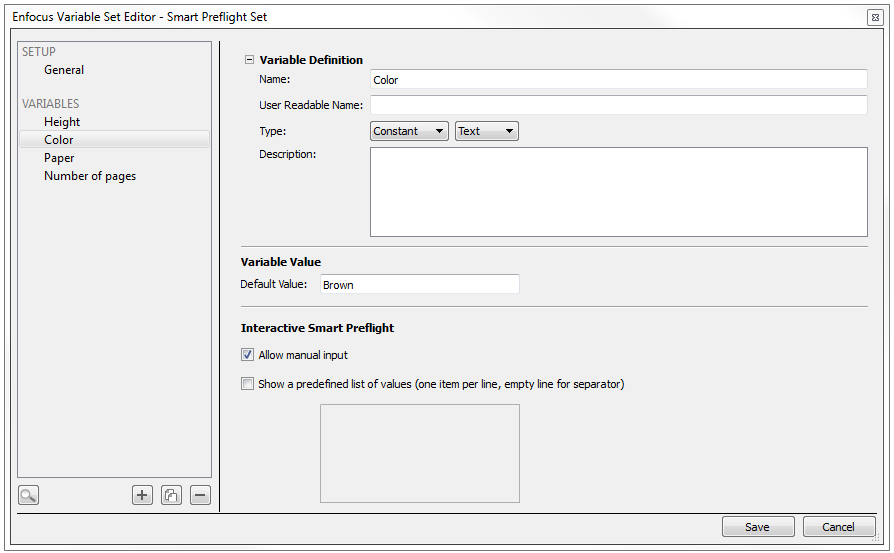
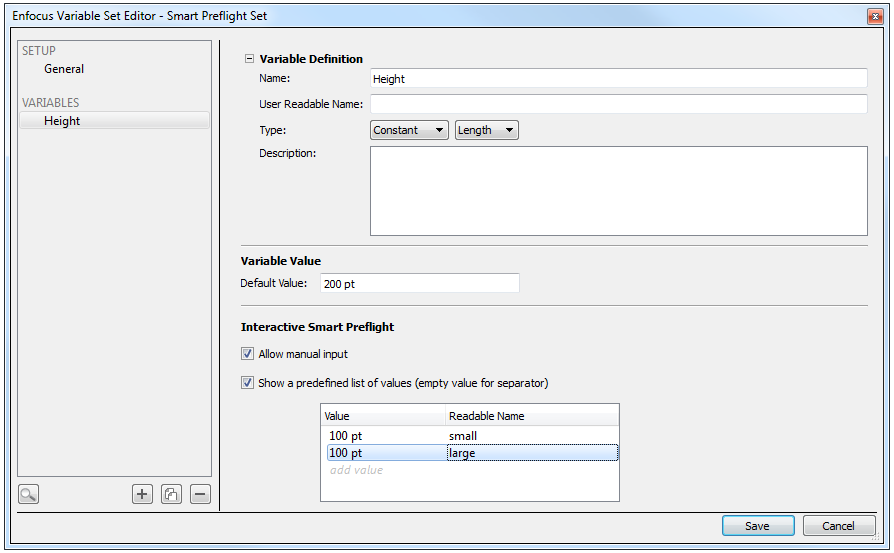
For constant variables, you need to name the variable, select the variable type and enter the Default value for that variable. The default value is displayed and is editable when a Preflight Profile is run.
Interactive Smart Preflight
The Interactive Smart Preflight section allows you to further configure the constant variables in such a way that you can let users to either manually enter values or select the most suitable value from a list of predefine values when they run the Preflight Profile.In the Interactive Smart Preflight section,
- Select the Allow manual input checkbox to enable users to enter the values when they run the Preflight Profile.
- Select the Show a predefined list of values checkbox to define
a list of values and allow users to select from this list.
- If you had chosen Text for the constant variable type then you'll see a multi-line textbox which gets enabled when you select the Show a predefined list of values checkbox. Enter plain text in the multi-line textbox. Press Enter key to type the next value in a new line.
- If you had chosen Number or Length
for the constant variable type then click where you see the add value
text in the multi-line textbox and add the value. If you choose
Length then the values will be in the unit of "Points".
You can mask the value and provide an alternate name for the user by entering it in the Readable Name column. Press Enter key to type the next value in a new line.
Leave a row blank to insert a line between values as separator.
You can also change the order of the values by just selecting a value and dragging it up or down and dropping it in the desired position.
- Enable the Allow manual input checkbox and disable the Show a predefined list of values checkbox to allow users to manually enter the value in the textbox.
- When both the Allow manual input and the Show a predefined list of values checkboxes are enabled, users can not only select a value from the predefined list but can also manually enter the value.
- Enable the Show a predefined list of values checkbox and disable the Allow manual input checkbox to force users to select a value from the predefined list only.
- Disable both the Allow manual input and the Show a predefined list of values checkboxes to display the value you have entered in the Default Value field in a read-only textbox.
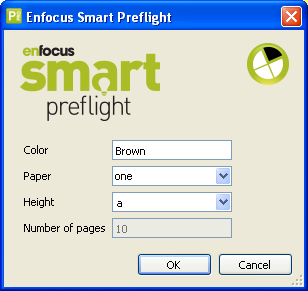
- The following example screen shot displays the Enfocus Smart
Preflight dialog box which will be displayed to users when they run a
Preflight Profile for which a variable set with the above settings has been applied.
Note:If you have an older version of PitStop Pro and you try to import and use Variable Sets which have been created with newer versions of PitStop Pro, you may get an error or warning message.
The error/ warning messages appear only if the Variable Set was created using at least one of the new features available in the future versions of Enfocus PitStop Pro.
-
When you try to import a Variable Set which was created using any of the newer major releases of Enfocus PitStop Pro, the following error message may appear and you may not be able to import the Variable Set:
The selected Variable Set, example.evs has been created with a more recent application and cannot be used.
The error/warning messages appear only if the Variable Set was created using at least one of the new features available in the future versions of Enfocus PitStop Pro.
-
When you try to import a Variable Set that was created using the next minor releases of Enfocus PitStop Pro, the following warning message may appear:
This Variable Set has settings not supported by this version of software. These may be changed or removed when editing the Variable Set.
Are you sure you want to edit this Variable Set?
Click the Yes button to continue using the Variable Set. You will see a similar error message in the Enfocus Variable Set Editor when you open the Variable Set for editing.
Note: You can create Variable Sets which are compatible with previous versions of PitStop Pro as long as you don’t use the new settings. Enfocus PitStop Pro will automatically choose the lowest possible Variable Set version number while saving to ensure maximum portability. -