Example: To apply a linear gradient to a line-art object
This example creates a rectangle and applies a linear gradient fill and stroke to it
(in RGB colors).
Step
Action
Result
1
Create a rectangle.
Location in Acrobat 8 or
9:
Enfocus Editing Tools
toolbar:
Location in Acrobat X or
XI:
Tools pane: PitStop Edit
>
2
Apply a solid fill.
Location:
Enfocus
Inspector dialog box:
>
>
3
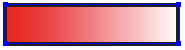
Apply a gradient fill.
Location:
Enfocus
Inspector dialog box:
>
>
4
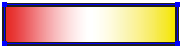
Change the gradient fill with the control bar in the
Enfocus Inspector dialog box:
Add color control points by clicking at the bottom of the
bar.
Remove color control points by dragging them away from the
control bar, or by selecting them and pressing the Delete
key.
Change the color by double-clicking color control
points.
Change the position of color control points and midpoints by
dragging them along the control bar (or by changing the
Location option for a selected
control point).