To create a rectangle and apply a linear gradient fill and stroke to it (in RGB
colors), proceed as follows:
| Step |
Action |
Result |
| 1 |
Create a
rectangle. Location:
Tools
pane:
|
 |
| 2 |
Apply a solid fill. Location:
Enfocus
Inspector dialog box:
|
 |
| 3 |
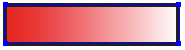
Apply a gradient fill. Location:
Enfocus
Inspector dialog box:
|
 |
| 4 |
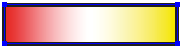
Change the gradient fill with the control bar in the
Enfocus Inspector dialog box:

- Add color control points by clicking at the bottom of the
bar.
- Remove color control points by dragging them away from the
control bar, or by selecting them and pressing the Delete
key.
- Change the color by double-clicking color control
points.
- Change the position of color control points and midpoints by
dragging them along the control bar (or by changing the
Location option for a selected
control point).
|
 |
| 5 |
Repeat for the gradient stroke. Location: Enfocus
Inspector dialog box:
|
 |


