You can select the measurement units and guides which have to appear after the values in the various dialog boxes of PitStop Pro.
Measurements
In the Units drop-down menu, select the measurement unit you want to use in the PitStop Pro tools, the Preflight Profile and the Action Lists.For example, if you measure the distance between two points or if you want to determine the position of an object, you may want to see these measurements in millimeters or in inches. Specific properties will always use the common measurement unit, for example font size will always be in points (pt.) and word spacing or character spacing will always be in em spaces.
Select the Show percentages checkbox if you want the value of the RGB color components to be displayed as a percentage rather than as a range between 0 and 255.
Page Coordinates
If you select the Rotate x-y axis checkbox, absolute coordinates in PitStop panels take the Acrobat view rotation setting into account, i.e. the coordinates change if the user rotates the view.
If you do not select the Rotate x-y axis checkbox, absolute coordinates in PitStop panels ignore the Acrobat view rotation setting, i.e. the coordinates do not change if the user rotates the view.
In both cases, the rotate key stored in the PDF page is properly honored.
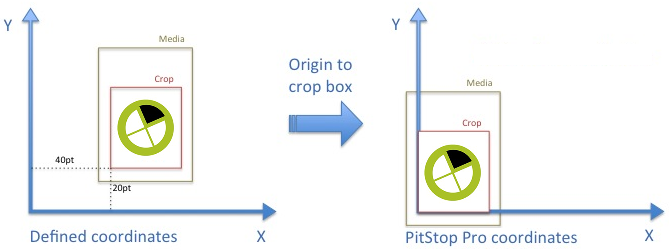
The Origin list allows you to have the origin of the page coordinates coincide with one of the page boxes (media, crop, trim or art box). This means that PitStop Pro will show all x and y coordinates relative to the lower left of the chosen box.
Guides
Select the Snap to guides checkbox if you want objects to snap to the guides as soon as they are moved inside the magnetic area.In the Snapping Tolerance textbox, enter the magentic area. For example, if you enter 5 pt here, objects that are moved towards the guide will snap to the guide as soon as they are within 5 pt of that guide.