The Enfocus Navigator allows you to check the results of the performed Action List, Global
Change and/or Preflight check if applicable. Depending on your PitStop Pro preferences (under General), the Enfocus
Navigator may pop up immediately after you have run an Action List, Global Change and/or
Preflight Profile.
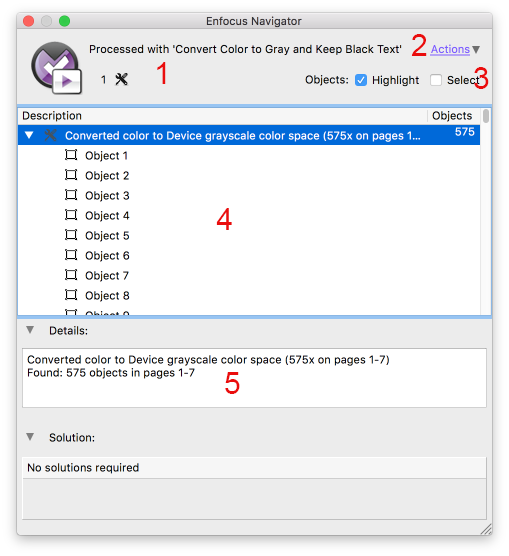
The Enfocus Navigator consists of the following screen parts:
Tip: If it doesn't appear, you can open the Enfocus Navigator via Tools > PitStop Process >  Navigator or .
Navigator or . The Enfocus Navigator consists of the following screen parts:
| # | Description |
|---|---|
| 1 | Name of the Action List, Global Change or Preflight Profile and the number of changes.
In the above example, only one change has been carried out. The icon |
| 2 | Click the Actions link and select Show
Report to view a Report with information about the PDF being processed (e.g.
document properties, security information, the performed Actions,...). Note: If you have used an Action of the type "informs", you should open the Report to find
the information you wanted to collect with the Action List!
|
| 3 | Select the checkboxes if you want to highlight and/or select the objects that have been affected by the performed Actions, Global Change, or Preflight check. |
| 4 | The Description section indicates which objects have been
changed. Select a line to see the corresponding details in the Details
section below. This way you can browse through the results. Note: It may be handy to use
this browser in combination with the Enfocus Inspector to see more details about a
particular problem or to correct the problem immediately. For more information, refer to
"Browsing throught the results" in the PitStop Pro Reference Guide.
|
| 5 | The Details section provides information about the items selected under Description. |
| 6 | The Solution section allows you to fix problems, in case of warnings or errors. For example, if an Action of the type "Check" has detected a font problem, you will get the possibility to select an alternative font and change the font immediately. |
 indicates that
the change was successful. In case of problems, you may see
indicates that
the change was successful. In case of problems, you may see  (Warning),
 (Error
which can be signed-off) or
(Error
which can be signed-off) or  (Error).