About operators in PitStop Pro
PitStop Pro provides a number of operators, allowing you to combine several Actions in a logical way.
These operators can be found in the Action List Editor, under  Selections (in the folder Operators).
Currently, following operators are available:
- AND, OR, NOT - explained below.
- Select all - is added automatically to new Action Lists, to avoid that you forget to select anything.
- Select last added objects - allows you to use the result of a previous "add" Action.
- Duplicate/Remove top of selection stack - are mainly used internally by PitStop Server and should not be used when manually creating Action Lists.
Rules of thumb
- The operators AND, NOT, OR) must not be entered between two or more selections, but after these selections (postfix notation)! These operators apply to the preceding selections.
- If an operator is selected in the Action List Editor, the Actions (or
group of Actions) it affects, will be represented using a green and purple indicator.
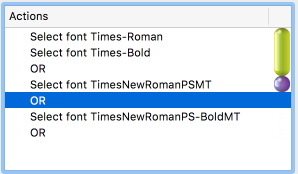
In the example above, the selected "OR" operator affects the "Select font Times New Roman" action (purple) and the combination of the first two lines and their "OR" operator (green).
- The operators AND, NOT, and OR are logical operators, which means that they have to be used in a strictly logical way. For
example, if you want to select the fonts Times-Roman (Adobe Type 1) and Times New Roman (TrueType), you should not use the AND
operator, but the OR operator (a font cannot be both Times-Roman and Times New Roman at the
same time). You could use the AND operator, for example, to select all text in Times-Roman and the color of which is blue. Your Action List would then
look as follows:
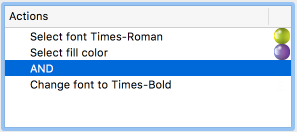
- The OR and AND operators only apply to two preceding selections.
Therefore, if you want to make more than two selections, you have to insert multiple operators
at the appropriate places in the “stack” of selections. For example, if you want to select the
fonts Times-Roman (Adobe Type 1), Times New Roman (TrueType) and their bold variants, your
Action List should look as follows:
- The NOT operator applies only to the preceding
selection and can be used to exclude something from a selection. Unlike the OR and
AND operators, the NOT operator only requires one selection. For example, if you want to change
all fonts but Times-Roman in a PDF document to Times-Bold, your Action List would look as
follows:
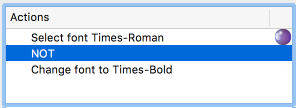
In the above example, the Action List will change all fonts in PDF document to Times-Bold, but leave Times-Roman (regular) unchanged.