To scale an object by dragging
-
Using the Select Objects
tool
 ,
select the object that you want to scale. Click the object or drag a rectangle,
called a marquee, around the object.
,
select the object that you want to scale. Click the object or drag a rectangle,
called a marquee, around the object.
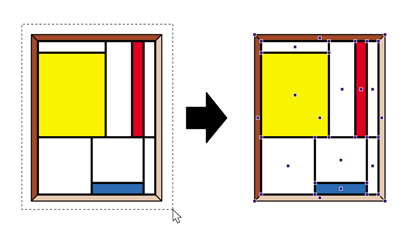
The following image shows how dragging a marquee around the object allows you to select the entire graphic.
-
Click the Scale Selection tool
 .
.
The Enfocus Inspector changes accordingly.
-
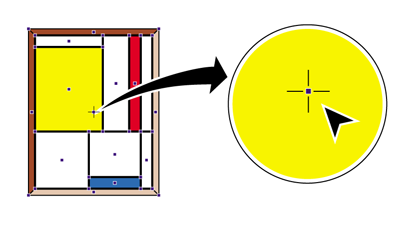
Click the selected object.
The object’s point of origin towards which it will be scaled is indicated.
The point of origin is in the center of the selected object.
-
Do one of the following:
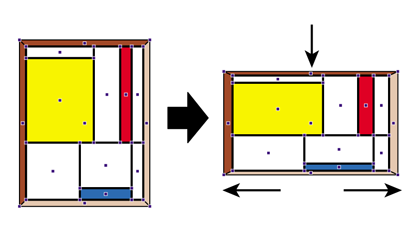
- To scale the object disproportionally, drag the selected object into a random direction.
Example: Scaling an object disproportionally changes the height-to-width ratio of the object.
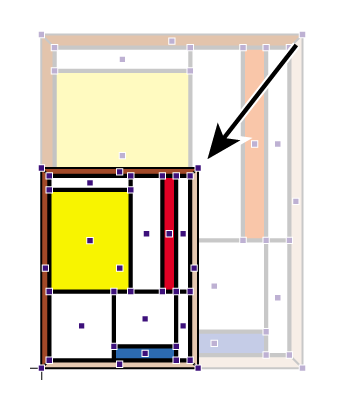
- Double-click on another position of the object to move the point of origin. Then drag to scale the object using the object’s new point of origin. For example, you may want to place the point of origin on one of the corners of a rectangular object, to keep two sides of the object at a fixed position when scaling.
Example: Scaling an object towards a point of origin other than the object’s center point.
- Hold down the SHIFT key while dragging to scale the object proportionally, i.e., to keep the height-to-width ratio of the scaled object identical to the original’s.
- Hold down the ALT key (Windows) or Option key (Macintosh) while dragging to create a scaled copy of the selected object.