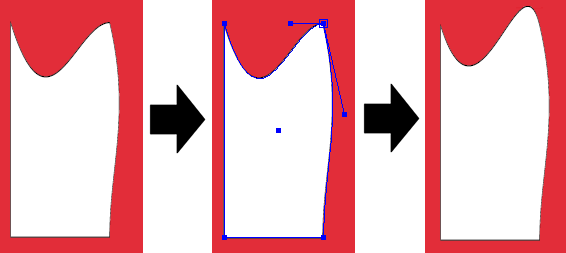
PitStop Pro enables you to change the shape of a path of a line-art object. You can do this by selecting one or more anchor points of the path and moving these anchor points or their direction points.
To edit a path
-
Click the Edit Path
 tool.
tool.
-
Click the line-art object of which you want to
edit a path.
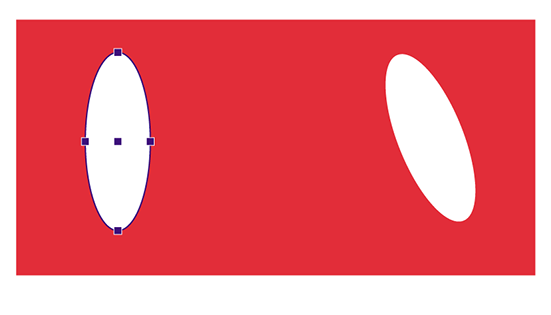
The anchor points of the path become visible, but are not selected yet.
-
Do one of the following:
- Click a specific anchor point a second time.
- Hold down the SHIFT key and click a number of anchor points a second time.
- Drag a dotted rectangle (marquee) around one or more anchor points.
The anchor points will be selected only if you click them a second time or if you drag a marquee around them. A selected anchor point will appear larger and its direction points will become visible.
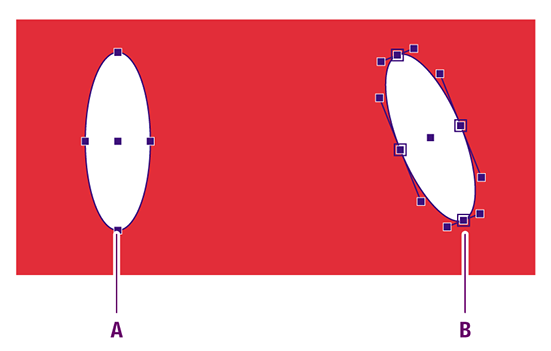
A: Visible anchor points which are not selected
B: Selected anchor points with their direction
-
Drag the anchor point or its direction point to
the required position to change the shape of the segment.
Example: Dragging a direction point to change the shape of a segment.
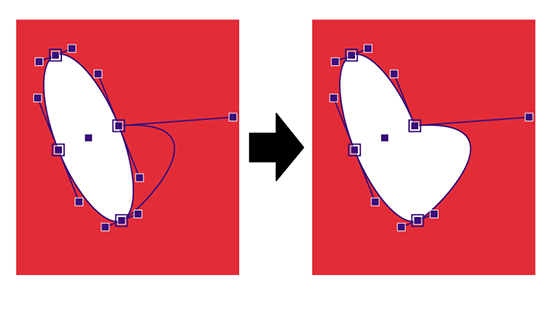
Remark: Curved segments will remain curved (as in the preceding screenshot) and straight segments will remain straight.
To change a straight segment into a curved segment, you have to select the (line) anchor point and change it to a curve anchor point (by choosing ) before dragging it to a new position.
For example, in the image below, the top left anchor point has been selected and set to a curve anchor point. By dragging this anchor point to a new position (moved up and to the left), the straight line becomes a curved line.
Example: Changing straight lines to curved lines
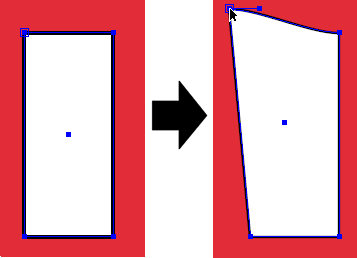
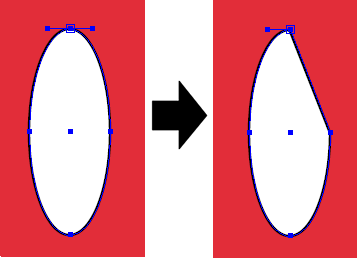
To change a curved segment into a straight segment, you have to select the (curve) anchor point and change it to a line anchor point (by choosing ).
Example: Changing curved lines to straight lines
Note: The lower left anchor point of a path cannot be changed, because this is the start point of the path. The option Set Line Anchor Point/Set Curve Anchor Point will be grayed out. If you do want to use this point to change the shape of a segment, you should change the direction of the path using .To smoothen the curve in an anchor point, select the anchor point and click , as shown in the example below.Example: Smoothening an anchor point