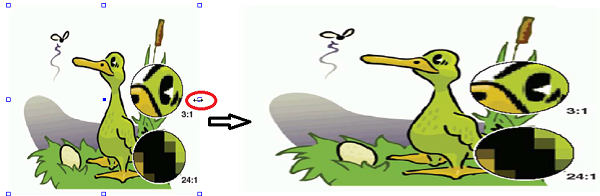
To scale an object by dragging using the selection handles
-
In the Enfocus Inspector dialog, click the
Select Objects
tool
 .
.
-
Move your pointer over one of the handles in the
corner of the bounding box, until it becomes an arrow
 as in the graphic below.
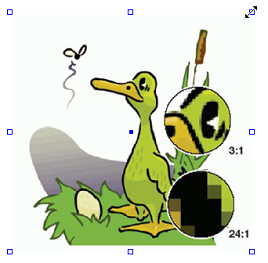
- Hold down the left mouse button while dragging the handle to the desired position.
- To scale the object around the center of the selection, hold down the Alt key.
- To scale the object proportionally, maintaining the height-to-width ratio, hold down the Shift key.

If multiple objects are selected (as the two text segments in the graphic below), they are all scaled in one go.Object Description 
1. Multiple selection 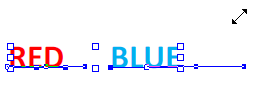
2. Scaled (before releasing the mouse button) 
3. Result
Note: To scale an object disproportionally, to enlarge or reduce it horizontally or
vertically, drag a bounding box handle to the desired position as shown
below.