The attributes you can set depend on the selected Action. Some Actions do not require any attributes; for others you should enter the preferred values, for example a length or a version number, pick a color, select an option from a list, select a checkbox, ... Setting the attributes is in most cases quite obvious.
Note: If an attribute of an Action requires a unit, for example a length, the unit
specified in the PitStop Pro
Preferences (Units & Guides Category) is used. For example, if you're using
the Select size Action, you have to determine minimum or maximum width or
the height of the objects you want to select. If you have selected "cm" in the
PitStop Pro Preferences,
you will have to specify a value in "cm".
This topic explains the "special cases":
- How to use variables instead of fixed values.
- How to use regular expressions
- How to log "check" Actions
- How to use the Use page rotation (and scaling factor) checkbox (which is available in a number of Actions)
-
To use variables instead of fixed values:
- Click the Actions link and select Enable Variable Names.
-
Click
 .
.
- Select the variable you want to use.
- Repeat steps b-c for each variable you want to use.
- Click OK.
You must have defined a Variable Set. For more information, refer to the chapter about Smart Preflight and the topic Creating a Variable set in the PitStop Pro Reference Guide. -
To use regular expressions instead of fixed strings:
Examples:
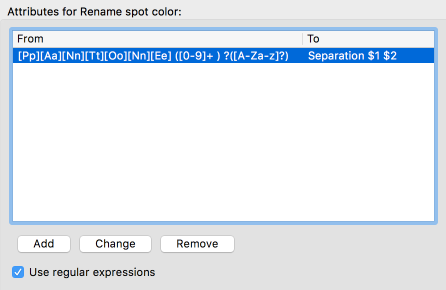
Rename spot color is an Action that allows you to change the name of spot colors in a document.- To rename variants of the same color, e.g. to rename “Varnish0”, “Varnish1”, “Varnish23” (i.e. "Varnish" followed by one or more digits) to “Varnish” (without any digits), you could create a rule that renames "Varnish([0-9])+" to "Varnish".
- To replace "Pantone" (regardless of the case) with "Separation" in
all spot color names used in your document, create the following
rule:
-
In case of Actions of the type "Check", you should determine if and how the
result of the Action should be logged (in the Enfocus Navigator and in the
Report).
- Don't Log: Nothing will be logged.
- Log as warning: If the check is positive, it will
be logged as a warning (
 ). This allows you distinguish between severe and
less severe issues.
). This allows you distinguish between severe and
less severe issues. - Log as error and allow Sign-Off (
 ): If the check is positive, it will be logged as an
error that can be "signed-off", i.e. can be "approved" or evaluated as a
minor error which doesn't fail PDF certification. This is only relevant if
you're running Actions in the context of Certified PDF.
): If the check is positive, it will be logged as an
error that can be "signed-off", i.e. can be "approved" or evaluated as a
minor error which doesn't fail PDF certification. This is only relevant if
you're running Actions in the context of Certified PDF. - Log as error(
 ): If the check is positive, it will be logged as an error. If you're
running Actions in the context of Certified PDF, this kind of problems will
prevent the file from being certified OK. The problem must be fixed, before
the file can be certified.
): If the check is positive, it will be logged as an error. If you're
running Actions in the context of Certified PDF, this kind of problems will
prevent the file from being certified OK. The problem must be fixed, before
the file can be certified.