The Design Layout toolbar consists of the Design Layout, the View Overlays and the View Page Boxes buttons.

Design Layout button
The Design Layout button can:
be grey when no document is open (whether a Design Layout is selected or not),

have a red cross when a document is open but no Design Layout is selected,

have a green check when a document is open and a Design Layout is selected.
Click the arrow beside the button to:
choose a Design Layout,
edit it (see Editing a Design Layout),
apply it to the current page (see Applying a Design Layout to a Page),
apply it to your whole document (see Applying a Design Layout to your Whole Document),
center it (see ),
show or hide the Enfocus Design Layout panel (see The Enfocus Design Layout Panel).
View Overlays button
 The View Overlays button allows
you to highlight all overlays (pages boxes, guides and special zones)
drawn over your document by the Design Layout you selected.
The View Overlays button allows
you to highlight all overlays (pages boxes, guides and special zones)
drawn over your document by the Design Layout you selected.
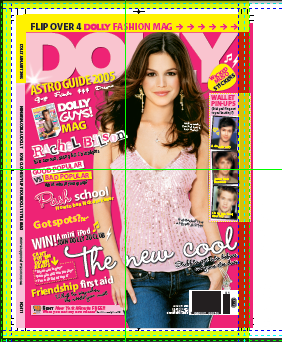
By default, the overlays are highlighted in the colors you chose in the Preferences (for guides and zones), but you can change those colors for each Design Layout.
View Page Boxes button
 The View Page Boxes button allows
you to show all pages boxes drawn over your document by the Design
Layout you selected.
The View Page Boxes button allows
you to show all pages boxes drawn over your document by the Design
Layout you selected.
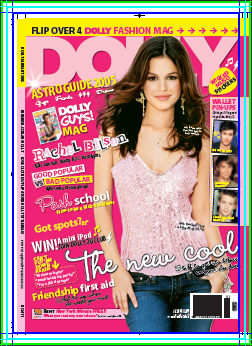
The page boxes are shown in the colors you chose in the Preferences.