A SwitchClient user connects to PowerSwitch through a user name and corresponding password. The user name identifies the SwitchClient user to the server and defines his/her access rights. The system administrator must configure the appropriate SwitchClient user information via the Users pane in PowerSwitch.
This topic describes configuring users and user groups. The next topic discusses configuring access rights.
Making changes in the Users pane
All changes in the Users pane are effective immediately. There is no undo capability.
Configuring users
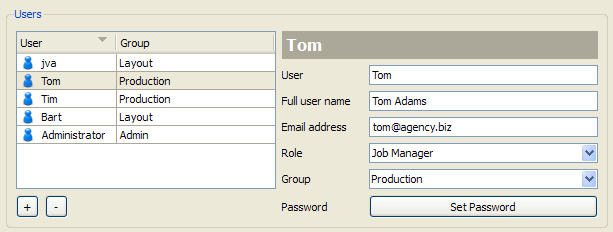
The top portion of the Users pane provides a list of individual users. You can sort the users in the table on user name or on group name by clicking the corresponding table headers.
To add a new user, press the + button and enter the user's information in the fields to the right. Providing an email address enables Switch to send notification email messages about a job to the appropriate user (email messages are sent only when this is explicitly designed into a flow).
Don't forget to set an appropriate password.
Each user is part of exactly one group (but a group can include multiple users). Assign a user to a group by selecting the appropriate item in the "Group" popup list. Since this list contains only already existing groups, you must create a group (as explained below) before you can assign a user to it.
it is allowed to modify or remove the pre-configured user "Administrator". In fact, at the very least you should set an appropriate password for that user.
Configuring groups
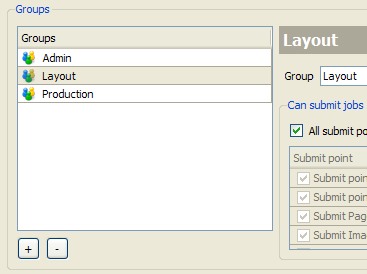
The bottom portion of the users view provides a list of groups of users. Access rights are managed at the group level; not at the level of each individual user (i.e. a user has the access rights of the group to which the user is assigned).
To add a new group, press the + button and enter the group's name in the field to the right. Then configure the access rights for the group (or rather, for users in the group) as explained below.
It is allowed to modify or remove the pre-configured group"Admin".