Properties pane
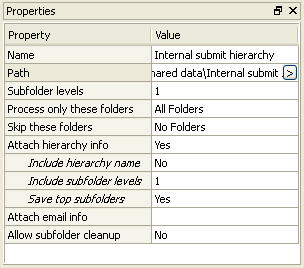
The Properties pane shows all properties for the selected flow in the Flows pane or for the selected flow element in the canvas. The name of each property is displayed on the left, its value on the right.
Inline property editors
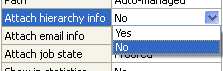
Some properties can be edited directly in the Properties area by clicking and typing in the displayed text field:

Or by clicking the drop-down menu:
Property editor dialogs
Other properties can
be edited through a property editor dialog. When you select the
property, a  button appears at the right-hand
side of the property value.
button appears at the right-hand
side of the property value.

Pressing
the button displays the property
editor dialog for the property. For example:
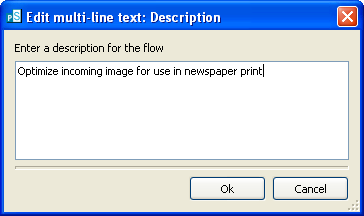
Update the fields offered by the dialog and press "Ok" to change the property value, or "Cancel" to leave the value unchanged.
Multiple property editors
Many properties
offer multiple property editors. In that case, when you select the
property, a  button appears at the right-hand
side of the property value.
button appears at the right-hand
side of the property value.
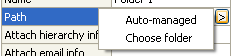
Pressing
the button displays a pop-up list
of property editor names; choose one of the names in the list to
select the desired property editor. This could be an inline editor
or a dialog.