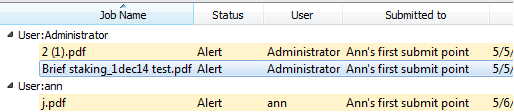
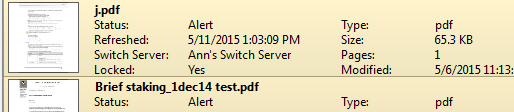
To view jobs in SwitchClient
-
Make sure the Jobs button
 is
selected.
is
selected.
- In the right part of the application, select the appropriate filter. For example, to see the job files you submitted yourself, click My Jobs. Also refer to Job filters in SwitchClient. The jobs matching the selected filter are shown at the right. If you don't see the expected jobs, check if:
-
To see the Jobs presented in a different way, click the
Workspace button
 and select
the appropriate view:
and select
the appropriate view:
-
To select a subset of jobs to be displayed
-
In the filter field in the top right corner of the application Click
the arrow next to the magnifying glass icon
 .
.
-
Select or clear the checkmarks as required, to search either in the job
name or in the whole job card.
The last entered search strings are shown in the list
('Administrator' in this example).
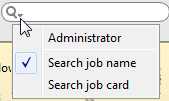
- Type a search string in the filter field. The filter is applied immediately.
-
In the filter field in the top right corner of the application Click
the arrow next to the magnifying glass icon
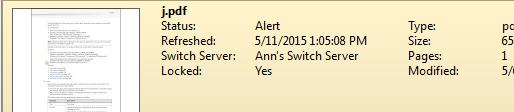
- To see the job details, double-click the job concerned. The individual job card appears, displaying all details of the job, such as its status, file type, ...
 to
update the information from the Switch Server.
to
update the information from the Switch Server.