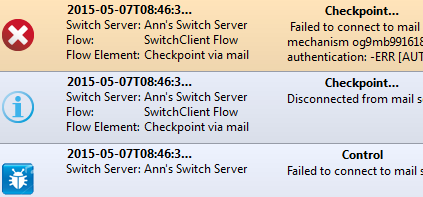
Users having the right permissions can see the log messages issued by the connected Switch Server(s). If more than one Switch Server is connected, all messages issued by all Servers are merged into one list.
To view the log messages in SwitchClient
-
Click the Messages button
 .
The Messages overview appears. If you don't see the expected messages,
check if:
.
The Messages overview appears. If you don't see the expected messages,
check if:- You do have the permission to view log messages. In your user profile in Switch, the View messages checkbox should be selected.
- The Switch Server concerned is running and the connection is established properly.
- The messages have not been deleted by Switch. Check the "cleanup" Application Data preferences in the Switch.
- The messages are loaded already. This may not be the case if you
recently added a Connection. Click the Refresh
button
 to update the information from the Switch
Server.
to update the information from the Switch
Server.
-
To see the messages presented in a different way, click the
Workspace button
 and select
the appropriate view:
and select
the appropriate view:
-
To filter and sort the messages, proceed as follows:
- Both views: Type a search string in the filter field
 in the top right corner of the screen to select the
subset of messages to be displayed. Note that you must click the magnifying
icon to indicate the column the filter should apply to. The last entered
search strings are remembered ('timers' and 'Flow 'Switchclient'' in the
example below)
in the top right corner of the screen to select the
subset of messages to be displayed. Note that you must click the magnifying
icon to indicate the column the filter should apply to. The last entered
search strings are remembered ('timers' and 'Flow 'Switchclient'' in the
example below)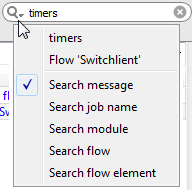
- Table view:
- To filter out messages based on a certain string in one column, enter that string in the filter field just above the column header.
- To sort the table rows on the values in a particular column, click on that column's header.
- To rearrange the table columns, drag the column headers around.
- To reset all filters, the column ordering and the filter history, use the context menu.
- Both views: Type a search string in the filter field