You can open the search menu by clicking the
Search button  on the left side of the search
field.
on the left side of the search
field.
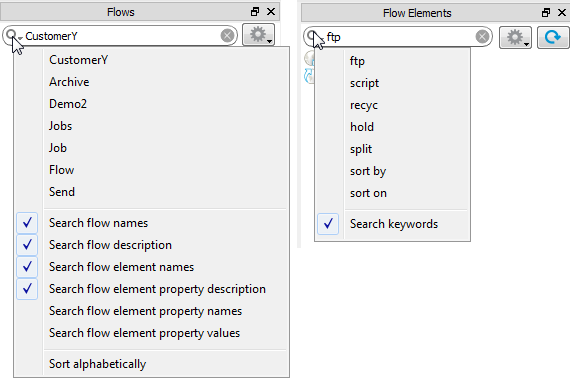
The search menu contains:
-
The last 7 strings entered in the field. Selecting one will reapply this filter.
-
A number of search options.
This controls the search targets included in the search. Each menu item has a checkbox which can be turned on or off by choosing the menu item.
For Elements, the name of the elements is always included in the search. You can also search for keywords, which are associated with the elements. For example searching for "PDF" will include Adobe Acrobat Distiller, although "PDF" is not a part of the Element name. For an overview of all elements and their keywords, see the Flow elements: overview.
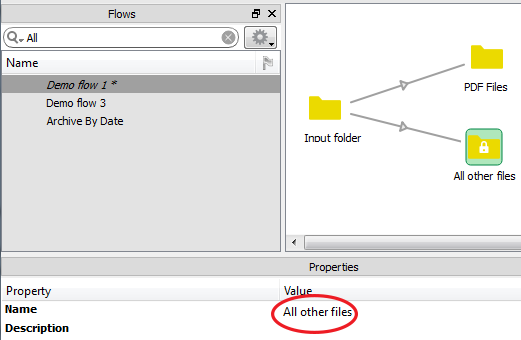
For Flows, you can search in the flow names, the flow descriptions, the elements used in the flows, or even the properties or values in the flow's elements. This allows for example to search for Flows containing the "Adobe Acrobat Distiller" element. If found, the flow element or connection is highlighted in green (see example below).
-
Sort options, allowing to sort the search result alphabetically, or in the order they were found.
Example of a search result found in the name of a flow element