The Switch Database Module automates the communication between any database and Switch.
This means you can use database information in Switch, for example to make decisions based on existing job or customer information. For example, if information about the paper type of a job is available in your MIS system, you can attach this information to the job and use this information to decide whether or not it should go to an Ink Optimizer.
Moreover, you can also change the information in your database from within your workflow to store information obtained in the workflow, for example to indicate that the job is done or to store preflight information. You can as well add or delete records in your database.
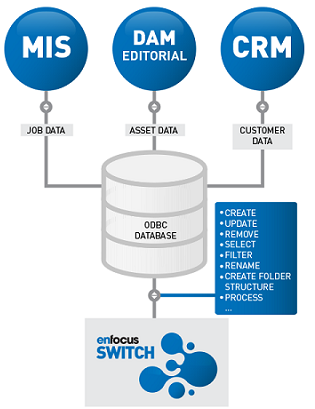
The illustration below shows how data from different types of databases (MIS/DAM/CRM database)
can communicate with Switch through ODBC data sources ("connections to the database").
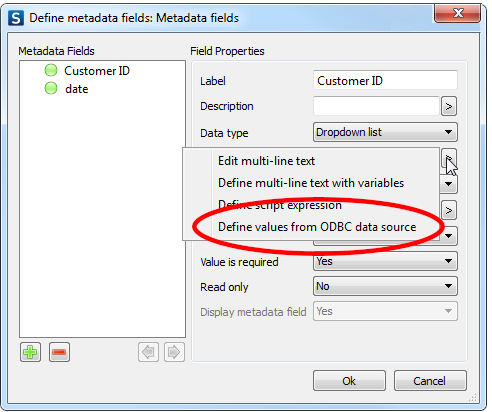
If you're using the Switch Web Portal or Connect ALL to submit jobs to Switch, the Database Module offers an extra feature, i.e. the possibility to present database values to the users and give them the chance to attach the appropriate values to the job. For example, instead of asking the users to type the correct customer ID (risk of typos!), you could show them a list of customer IDs available in the database to choose from.
Database connect
An active license for the Database Module gives access to the Database connect flow
element. 
This element allows you to establish a
connection with the database of your choice (using ODBC data sources) and to build an SQL
statement to determine what data should be collected, added, modified, filtered, changed…
When a job passes through this flow element, the SQL statement is executed. To keep an eye on the changes, you can log the result of the SQL statement.
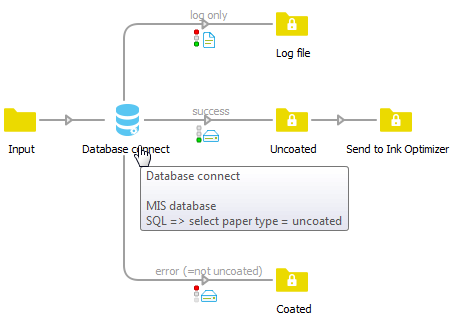
In the following example, when a job arrives in the Database connect flow element, Switch
connects to the MIS database and checks the paper type for the current job. Only if the job
matches the SQL statement, the job is “successful” and the job will be sent to the Ink
Optimizer. For each job, a log file is created and stored in a separate folder.
Database variables
Additionally, the Database Module gives access to an extra set of variables, e.g. the Database variables which also retrieve data from your database but which can be used wherever variables can be used in Switch (so not only in combination with the Database connect flow element).
Variables in Switch are “placeholders” - they are replaced with actual values when a job is being processed. For example, if you want that the customer receives a notification whenever a job is finished, you should use the [Job.EmailAddress] variable (in the Mail send element) to make sure that the email is sent to the right email address (i.e. the address associated with the job). However, if you have activated the Database Module, you can select (additional) email addresses available in your database. The variable will start with "Database", e.g. [Database.Text:SQL=" SELECT Email FROM Customers"] (SQL statement to select records from the column "Email" in the table "Customers").Database fields in the Switch Web Portal and Connect ALL
A Submit point (in Switch) or a Connector (created with Connect ALL) can be configured to ask for metadata when a job is submitted. Metadata is additional information about the job, sent along with the processed job in the background as an XML, TXT or CSV file (called Job Ticket). It is often used to store administrative information associated with the job or to exchange such information between systems.
If you have licensed the Database Module, you can define your metadata fields using values from your database (again using an SQL statement).