The Submit jobs view allows you to submit Jobs to the Switch Server. You can see all Submit
points that you have access to, based on your permissions (as set in the Users pane in
Switch). 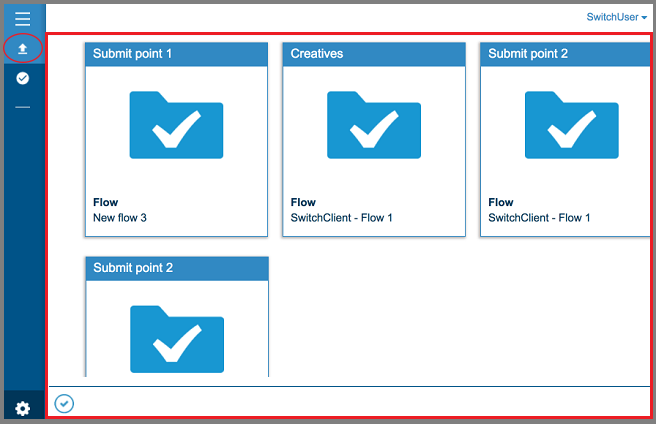
When you hover over a Submit point, it changes as shown on the screenshot:
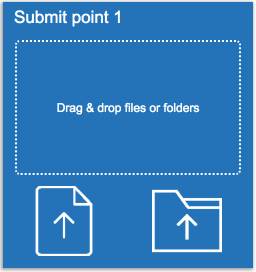
The upper area is the 'drag and drop' area; the lower area consist
of two buttons, which allow you to browse to the files you need. The first button should be
used to submit files, the second one to submit folders.
Once you have submitted a job, you will see one of the following icons at the bottom of the screen:
| Icon | Meaning |
|---|---|
 |
Indicates that a job is being uploaded. You can click it to see the percentage of completion. |
 |
Indicates that the jobs that were submitted in the current session were uploaded successfully. You can click the icon to see which jobs were uploaded. |