Note: Switch interprets the opening square bracket '[' as the beginning of a new
variable. To use the square bracket as static text, you need to double it: '[['.
Note that there is no need to double the closing square bracket.
Example:
- Input: This the value of the [[Job.Name] variable: [Job.Name] (the first instance of [Job.Name] is to be interpreted as static text; the second as a variable)
- Result for a job with the name TestFile.pdf: This is the value of the [Job.Name] variable: TestFile.pdf (only the second instance of [Job.Name] is replaced by the actual job name)
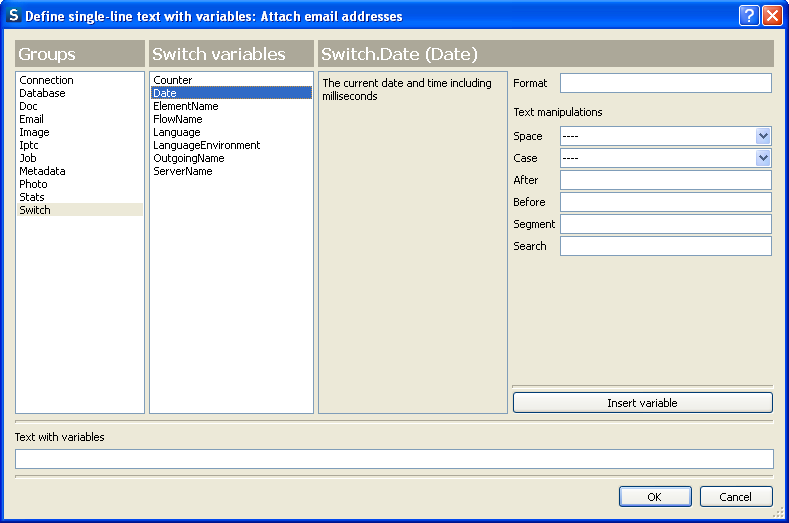
To insert a new variable in the text, proceed as follows:
- In the text field at the bottom, place the text cursor in the location where you'd like to insert a variable; make sure it is not inside a pair of square brackets [ ] that mark a variable; if the text field is empty, just leave the cursor at the start of the field.
- Select a variable group in the leftmost list ("Switch" in the example above); the list to the right adjusts to list all the variables in this group.
- Select a variable in the second list ("Date" in the example above); the text area to the right adjusts to provide a brief description of the variable, the title bar indicates the variable's data type, and the rightmost column shows any arguments relevant for this variable (see Characteristics of variables).
- If the rightmost column contains any text fields, enter the appropriate values for the variable's arguments (see Metadata); leave a field blank to use its default value.
- Once you are satisfied with the selected variable and argument values, click the Insert variable button.