It is possible to submit single files or multiple files, or files contained in a folder (for example a page layout with its accompanying images and fonts or the individual pages in a book). A job folder may contain nested subfolders (which can contain other files and folders, recursively).
If the files are contained in a folder, they will be considered as one job with one dataset; it will not be possible to enter metadata for each file separately.
To submit a job to a particular Submit point:
-
In the Switch Web Portal, in the navigation area, click
 Submit jobs.
You can see the Submit points you have access to.
Submit jobs.
You can see the Submit points you have access to.
-
Do one of the following:
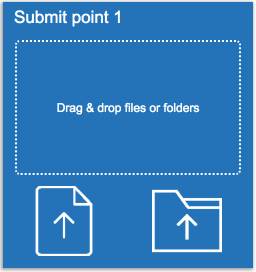
- "Drag and drop" the file(s) or folder(s) you want to submit onto the Submit point of your choice. Make sure the files are dropped on the upper part (drag & drop area).
- Hover over the Submit point of your choice, and click the appropriate
button in the lower part. The first button is to be used for files, the
second for folders. You can then browse to the files or folders you need and
select them.
- If you have selected several files, you must first decide if you want to process them as separate jobs or as one job. Click the button of your choice. If you choose to process them as one job, the files will be submitted to and moved along the flow as a single entity.
- If the Submit point has been configured to request additional information about the job ("metadata"), you'll get a dialog with one or more entry fields. Enter the requested information.
-
Change the job name as required.
The chosen job name will replace the file name. For example, if the job name
is "testjob", the job file "customerX.pdf " will be renamed "testjob.pdf". The
file extension remains the same.
In case of a job folder, the job name will replace the name of the folder. The files contained in this folder will not be renamed.
In case of multiple files being submitted in one go, you cannot enter a job name, unless you have chosen to process them as one job; in that case, they are put in a folder and the chosen job name will be the folder name.
- Click Submit.