What it does
Allows you to group several Actions within an Action List.This Action is useful to organize and document your Action List.
Note: Instead of using the Group Actions Action, you can as well right-click an Action in the
Action List and select Make Group from the context menu.
How to proceed
- Double-click Group Actions to add it to the Action List.
- Specify a meaningful name for your Action group and enter a description.
- Move Group Actions to the desired position. You can drag and drop it, or use the options in the context menu (Move Up, Move Down).
- Add the required Actions to your Action List and drag them to your group.
Example
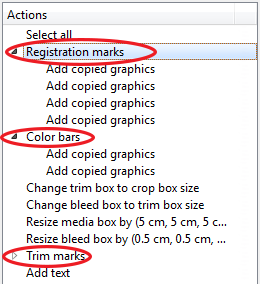
The screenshot below shows the Add my Printer Marks and Enlarge Action
List (by default provided with PitStop). This Action List contains 3 Action groups (preceded by
an icon:  if
the group is expanded;
if
the group is expanded;  if the group is collapsed):
if
the group is expanded; if the group is collapsed):- The Registration marks group contains the different Actions required to add registration marks to the top, bottom, left and right of the page.
- The Color bars group contains the Actions to create two color bars.
- The Trim marks group contains the Actions to set the trim marks (using Add object).