This procedure describes how to initialize
PitStop Pro. Note that this is
only required:
- If it is the first time you're activating an Enfocus product on a particular computer.
- If you want to activate PitStop Pro offline, i.e. on a computer without internet access. In case of online activation, initialization is done automatically in the background.
Prerequisites:
- You need an additional computer with internet access to communicate with the Enfocus web server.
- You need an Enfocus ID. To create an Enfocus ID (on a computer with internet access), go to the Account section of the Enfocus website and follow the on-screen instructions. After completing the form, you will receive an e-mail with your Enfocus ID and password.
How it works:
Initializing PitStop Pro consists of three
steps:
- Create an initialization request on the computer on which you installed PitStop Pro.
- Save this file on another computer with internet access and upload it to the Enfocus activation website. Enfocus will provide you with a response file.
- Upload the response file to the computer on which you installed PitStop Pro.
Each of these steps is explained below.
To initialize PitStop Pro
-
On your offline system with PitStop Pro:
- In the About Enfocus PitStop Pro dialog box, on the License tab, enter your Enfocus ID and password. The Enfocus ID is a new account that replaces all former Enfocus accounts (the webshop, product activation and support portal account). If you don't have one yet, click the Create Enfocus ID link and follow the on-screen instructions.
- Click Sign in.
- Click Offline Activation. This button appears if PitStop Pro detects that there is no internet connection. If for any reason this button is not available, select the Offline mode checkbox at the bottom of the tab.
- Click Activate Key
-
Enter your product key by doing one of the following:
- Type or copy-paste your product key in the Product key field.
- Browse to your product key license file (example: LicensesBackup.html) or drag it to the Product key field.
- Click Activate. The following dialog box opens:
- In Step 1, click Save. PitStop Pro creates a file: requestinitialize.xml.
-
Make requestinitialize.xml available on your online
system.
Example: You can copy requestinitialize.xml to a USB stick, and connect the USB stick to your online system.
-
On your online system:
- Go to http://www.enfocus.com/products/activation?lang=en
- Upload requestinitialize.xml, and click Continue.
- Fill in your Enfocus ID password, and click Continue.
- Click Continue to confirm. The Enfocus web server creates a file: response.xml.
- Download the file.
-
On your offline system with PitStop Pro:
- In Step 2 (right part of the dialog), upload response.xml.
- Click Initialize. Your system initializes PitStop Pro.
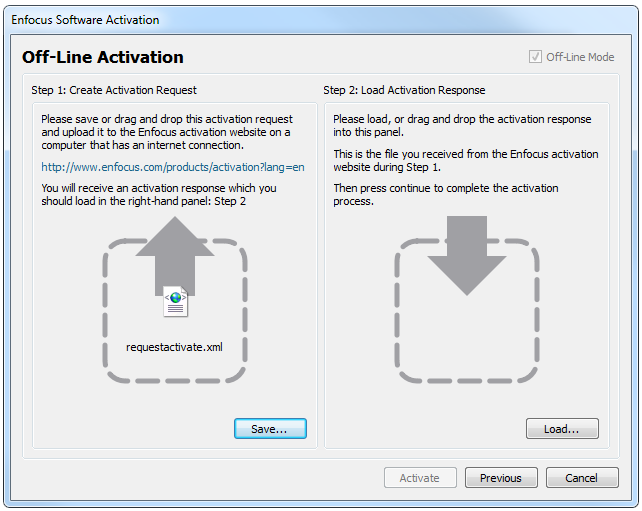
Once you have initialized PitStop Pro,
the Off-Line Activation dialog appears. You can immediately go on with the last substep of step 1 (save
requestactivate.xml) of the offline activation procedure.