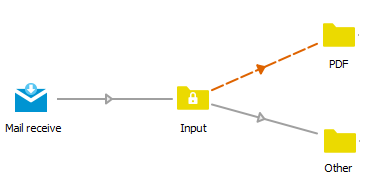
After you have placed the required flow elements on the canvas, and connected them as required, you must configure each flow element's properties.
Properties pane
The Properties pane displays the properties of the selected flow element.
Each flow element type has its own specific properties.
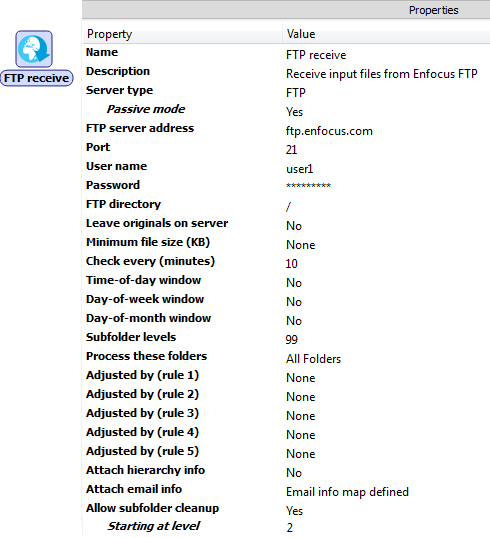
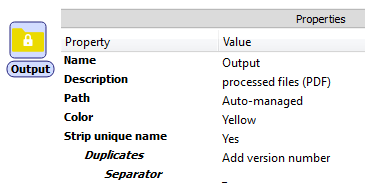
For example, FTP receive has properties to identify the FTP server, whereas the Folder element has a property for the file path.
Properties may also be different, depending on the flow element(s) the selected element is connected to.
Example of the properties of an FTP receive flow element:
Example of the properties of a Folder flow element:
Default values
Switch fills the properties with meaningful/default values; you only have to specify values that Switch cannot know (e.g. FTP/e-mail server address, user names and passwords, e-mail addresses for notifications…) and values that are different from the default values.
Filters
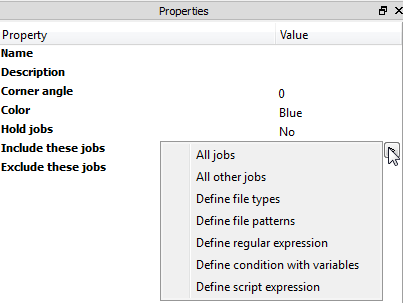
Example of the properties of a Connection flow element:
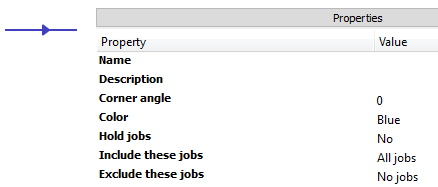
The Connection properties allow you to filter, i.e. exclude or include particular files (or file folders, depending on the connected elements) moving along the connection. Filter properties can be used to sort files, based on file types, file patterns … (see image below).
Example of a flow with filtering via the Connection properties
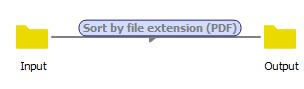
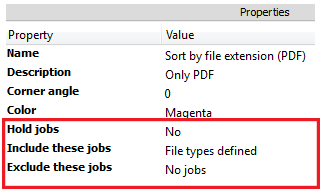
In this example, only PDF files will be sent to the output folder; all other files will be sent to a Problem jobs element. Alternatively, you could add a second output folder, to take care of the non-PDF files. The connection to this second output folder should have the property Include these jobs set to All other jobs.
Hold jobs allows you to stop files from being routed to the next folder; the files remain in the source folder, and you can check their properties via the Jobs pane. See About sample jobs.
This also allows Switch to use the input as an example when defining variable parameters. For a use case, see exercise 3.