Input for testing
- If you have chosen a Folder element for your input:
- If you have entered a file path in the Folder element property Path, make sure it contains some appropriate input files or folders.
- If you haven’t configured a path in the Folder element property
Path, drag and drop the input from your local computer onto the
input element on the canvas. Note: In that case, the value of Path is Auto-managed (which is the default value). Auto-managed folders are folders that are created automatically (by Switch) in the application data root folder. Note that the the path to the application data root folder can be found in the .
- If you have chosen a Mail receive or an FTP receive flow element, make sure that some input is available on the configured mail or FTP server.
- If you have selected a Submit point, you must provide your input using the Switch Web Portal. For more information, refer to the Switch Reference Guide.
Switch will process the input as soon as the flow is activated.
Information while processing
-
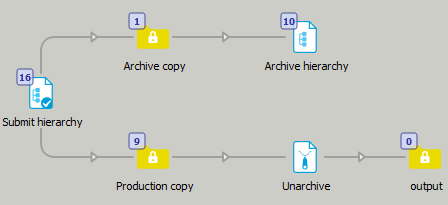
The number of jobs being present in a folder is indicated on the canvas. This allows you to see how files move along a flow and where they are being hold.
If more than 100 jobs are present in a particular folder, Switch doesn't display the number, but instead displays the symbol for infinity.
- Problem jobs and problem processes are marked with an error mark
icon.

If the icon appears next to a Problem jobs folder, the Problem jobs folder contains at least one file or file folder. This may be due to the fact that the job does not match the filters set on a Connection element.
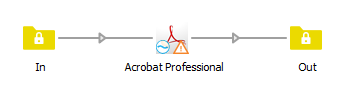
If the icon appears next to a flow element for processes, there may be a problem with this element, for example a network error (so jobs can no longer be transported), or an invalid property.
If the icon appears next to a folder element, probably the backing folder is not accessible anymore, for example because it does not exist anymore, or because the local network connection is broken.
Output
Carefully check the output.
- Stop the flow, by clicking the
 button.
 - Review the properties of the flow elements.
- Activate the flow again, to see the result of your changes.