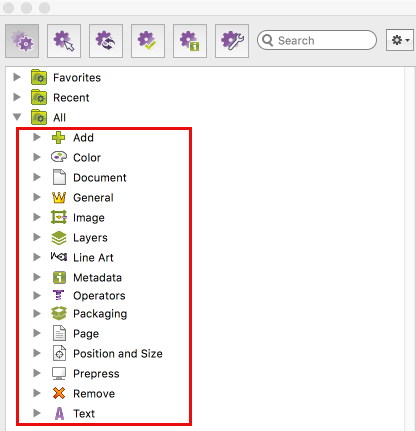
All Actions that can be used in Action Lists are listed in the left panel of the Action List Editor. As there are more than 500 different Actions, and to make it easier to find the Action(s) you need, Actions are sorted by type and category.
Action types

 Selections
Before you can change something in a PDF document, you evidently have to select it. All Actions that allow you to select something in a PDF document are listed in the Selections category, together with the logical operators (“AND”, “NOT, “OR”, ...).
-
 ChangesA lot of Actions allow you to make changes. The list of changes includes almost anything which professional PDF editing tools like PitStop Pro can do, including:
- Adding objects, or page numbers
- Changing a wide variety of properties, including page boxes
- Color conversions
- Removing objects
- Rotating and scaling page content
- Font- and color-related changes
Note: For each "change" Action; you can decide whether or not to log the changes in a Report.  Checks
Action Lists do not necessarily have to change PDF documents. You can also create them to check various properties in PDF documents or detect specific objects or elements. For example, an Action List can check font-related properties or detect empty pages in a PDF document.
Note: For each “check” Action, you can decide whether or not to log it in a Report, and if you log it, you can assign it a status (“Warning”, “Sign-Off Error” or “Error”). For more information, refer to The Enfocus Navigator. Informs
Action Lists can also gather information from PDF documents. This can be information about fonts, colors, OPI, etc. This information will be presented in a Report, available via the Enfocus Navigator. Refer to The Enfocus Navigator.
-
 Settings
Action Lists can also be used to change certain default PitStop Pro settings like the image recompression, page box, and color management settings, or the number of decimal places that is taken into account when checking values.
Action Categories
The Actions are further grouped into different Categories, referring to the domain they apply to (e.g. Color, Page, Prepress).
Search field
To find the Actions you need, you can can type a key word in the Search field at the top of the pane. Note that the search is limited to the selected Action Type; for example, if you've clicked the "Checks" icon at the top of the pane, PitStop Pro will only search for the entered keywords in the list of "check" Actions.
If you don't want to limit your search to a specific Action type, make sure to switch to
the All Actions view ( ).
).