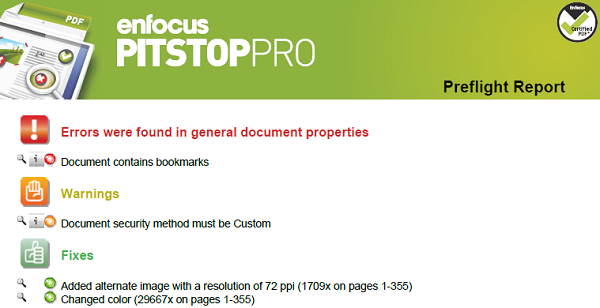
If you have run an Action List, a Global Change or a Preflight Profile, you have the possibility to create a report (in PDF format) with information about what has or has not changed. In case of Actions of the type "Informs", you need to generate such a report in order to see the information you asked for.
Content of a Report
| Section | Content |
|---|---|
| Errors, Warnings & Fixes | (Potential) problems and changes. It depends on the log level of the "check" Actions in the Action List whether or not something is tagged as an Error or Warning. |
| General File Information | Properties of the PDF document, such as PDF version, title, author, etc. and security information. |
| Font Information | All fonts used in the PDF document, along with their attributes (type of font, embedded or subset, etc.). |
|
Image Information |
All images in the PDF document, along with additional information (for example physical and effective resolution, page, angle, custom color functions, etc.). |
| OPI Information | OPI usage in the PDF document. |
| Color Information | All color spaces (RGB, CMYK, etc.) used in the PDF document, with additional information where required. |
| Ink Information | CMYK ink coverage calculated for the whole document and for each page separately. |
| Layer Information | Properties of the layers that are present in the document. A clickable tree view shows the sequence of the layers. |
Fixes, warnings, and errors
- A magnifying glass icon
 . Clicking this icon opens the Enfocus Navigator and allows you to
browse through the list of affected objects.
. Clicking this icon opens the Enfocus Navigator and allows you to
browse through the list of affected objects. - An information icon (in case of a warning or error)
 . Clicking
this icon opens a Help topic with information about the problem concerned.
. Clicking
this icon opens a Help topic with information about the problem concerned. - A green, orange or red bullet, indicating the type of problem:
 Green for a fix
 Orange for a warning
 Red for an error
Report styles
When generating a report, you can choose the report layout style that suits your needs.
There are four "annotated" reports (first four in the table below). An annotated report is a combination of the original document and the report. The report information is integrated in the original document as a number of notes and bookmarks, allowing to easily navigate to the errors and warnings, in Acrobat Reader or in a browser, without using any Enfocus software.
The three other report styles (Regular, Minimum, Continuous) do not include a copy of the original document.
| Report style | Description |
|---|---|
| Annotated Report | Report with annotations. The report is a copy of the processed PDF; checks and changes are annotated. |
| Low Resolution Annotated Report | Report with annotations and with low resolution images, which reduces the file size of the report. |
| Secured Annotated Report | Report
with annotations and protected with a password.
Users are not allowed to edit the report.
Note: When selecting this report style, you are
asked to enter a password. With this password, you
can still change the security settings of the
report as required.
|
| Scaled Low Resolution Annotated Report (max A4) | Report
with annotations. The entire document is scaled
and has a low resolution. The size of the pages in
the report will not exceed the A4 size and the
images are also compressed to a smaller
size. Note: This may be useful if you want to send
reports for large format documents through
email.
|
| Regular | Report which does NOT include the processed PDF. It contains general file information and an overview of the fixes, failures, warnings, and errors (if any). |
| Minimum | Regular report with minimal information. |
| Continuous | Regular report, but without page breaks between the topics (information about the fixes and general file information, font information, ...) as in the Regular Report. Printed in grayscale. |