Gradients: control bars

In addition to a number of options and buttons, there are two different control bars to change the gradient. To work easily, open both and use the one that works best in your case.

Note: To access the control bars, see To apply gradients.

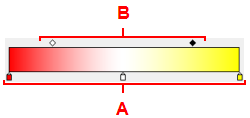
Control bar displayed in the Enfocus Inspector dialog box

Control bar You can
  1. Color control points
  2. Midpoints between two color control points
  • Add color control points by clicking at the bottom of the bar.
  • Remove color control points by dragging them away from the control bar, or by selecting them and pressing the Delete key.
  • Change the color by double-clicking color control points.
  • Change the position of color control points and midpoints by dragging them along the control bar (or by changing the Location option for a selected control point).

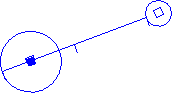
Control bar displayed on the PDF document

Control bar You can
When using a linear gradient, the control bar looks like this:

  • Drag the control bar.
  • Drag the control points on the control bar.
  • Move the end points.
When using a radial gradient, the control bar looks like this:

  • Drag the control bar.
  • Drag the control points on the control bar.
  • Enlarge and shrink the circles.
  • Move the midpoints of the circles.