Depending on what you want to do, you may want to view or hide certain screen elements, such as page boxes, rulers, guides, … Remember that some of the options mentioned below may not be present (depending on the configuration in Switch).
- In the top left corner (below the company logo), click View.
-
Beside the screen element that you want to hide or view, move the slider as
required:
- Move the slider to the right to show the screen element.
- Move the slider to the left to hide it.
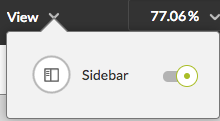
Screen element Meaning Sidebar (always available)
The sidebar is the area on the left. It always contains a Thumbnail tab, and it may also have a Layers and a Comments tab (if enabled in Switch). You may hide the sidebar to have more space for the PDF. Note that showing and hiding the sidebar is default functionality; this option is always available.
Rulers (default off)
Rulers allow you to measure the size of the objects in the PDF. Page Boxes (default on)
Page boxes define the physical size of a document, so you may want to check if they are OK. Each page box has its own color. To know which color represents which page box, click the Format tab in the right part of the user interface. On this tab, you'll also find information about the dimensions and the position of the page boxes.
The colors used to draw the page boxes cannot be changed.
The used colors are:- Media box: red
- Crop box: green
- Trim box: blue
- Bleed box: pale blue
- Art box: purple
When the page boxes are not shown, the crop box is the page size at which your document is displayed. If they are shown, the media box is used to define the page size. This behavior is the same as in PitStop Pro (Show/hide Page Boxes view).
Guides (default on)
Guides are useful for lining up objects in the document.
When you move the slider to the right, you have the possibility to add guides yourself.To add a guide
- Click in the ruler. The guide is added automatically.
- Keep your cursor in the ruler area and drag it to the desired position.
Wireframe Mode (default off)
Wireframe Mode shows the objects in the document as outlines. Note: If you're using Safari, you may encounter issues with large PDF files with a lot of text, or other objects that generate a lot of wireframe. If so, we recommend using a different browser (e.g. Google Chrome or Mozilla Firefox).Ink coverage (default off)
You can use the slider or type a value of your choice to evaluate the impact of changed ink coverage. The fluorescent green color is used to show the areas with the highest ink coverage. You can pick a different color by clicking the color patch.
Your choices - except for wireframe mode and ink coverage - are remembered and used next time you open a document in the PDF Review Module.