SwitchClient has a single window that supports all its tasks. The SwitchClient window is
displayed when the application is launched.
Screen parts
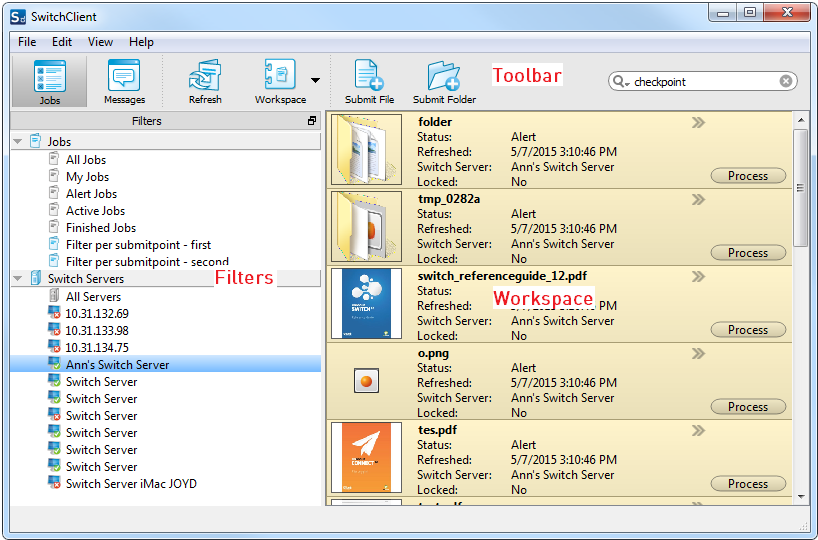
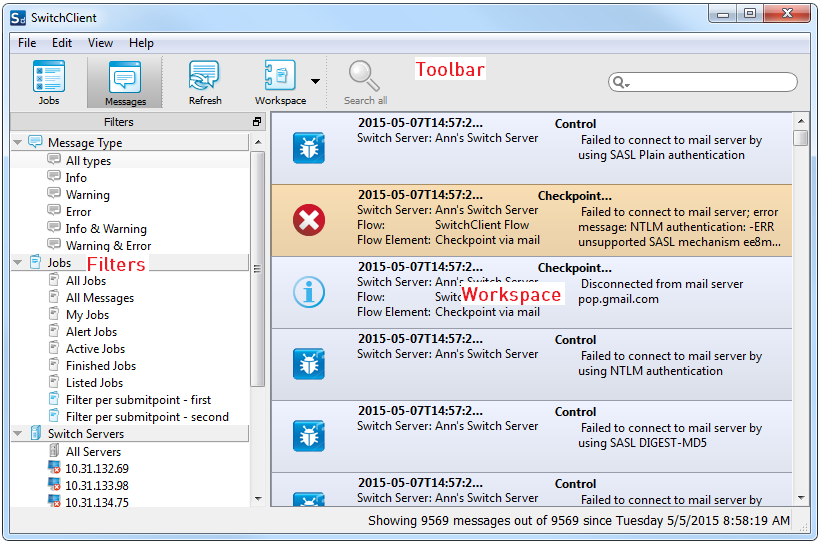
The SwitchClient window is divided into
three sections:
-
The topmost section displays a list of buttons; this is the
toolbar.
-
The left section shows a list of filters.
-
The rightmost section, the workspace shows what's filtered out by
the filters selected at the left side.
What's shown exactly in each section, depends on the chosen
view: the Jobs view (Jobs
button selected) or the Messages view (Messages button selected).
Jobs view
The default view is the
Jobs view, allowing you to manage all jobs submitted through
SwitchClient.
| Section |
Description |
| Toolbar |
If the Jobs View is selected, there are (apart from the Jobs button) 5 buttons
available:
- Messages (to switch to the Messages view)
- Refresh
- Workspace (to toggle between a representation of jobs in a
table or as small or large job cards)
- Submit File
- Submit Folder
|
| Filters |
Two Filter panes are available:
- Jobs (to filter out jobs based on the type of job; there are
default filters just like All jobs or My jobs, but you can also configure your own
filters)
- Switch Servers (to filter out jobs based on the appropriate
Switch Server connection)
|
| Workspace |
The chosen filter in the Filters section determines which jobs are shown. For example,
if My Jobs is selected, all jobs submitted by you are shown. The way they are presented
depends on the chosen presentation mode (using the Workspace button). Options are:
- Small Card View
- Large Card View
- Table View
|
Messages view
If you have the right permissions, you can switch to the
Messages view to view the log messages issued by the Switch Server(s) your copy of
SwitchClient is connected to.
| Section |
Description |
| Toolbar |
If the Messages View is selected, there are (apart from the Messages button) 4 buttons
available:
- Jobs (to switch to the Jobs view)
- Refresh
- Workspace (to toggle between a representation of jobs in a table
or as small job cards)
- Search all (to search for keywords in all job
fields/columns)
|
| Filters |
Three Filter panes are available:
- Message Type (to filter out messages based on the message type, e.g. warning,
error, ...)
- Jobs (to filter out messages based on the type of job they
relate to)
- Switch Servers (to filter out messages issued by the appropriate
Switch Server connection)
|
| Workspace |
The chosen filter in the Filters section determines which messages are shown. For
example, if Info is selected in the Message type filter pane, all info messages are shown.
The way they are presented depends on the chosen presentation mode (using the Workspace
button). Options are:
- Small Card View
- Table View
Colors and icons are used to differentiate between the different message
types.
|
Search box
Users can search for a job by entering the job name or job card
details in the search box. Using the search box, it is possible to find a job even if the
searched value is not displayed. For example: searching for a specific flow name returns all the
jobs for that flow, even if the flow column is not displayed. See also Refer to
Viewing jobs in SwitchClient.