What are database variables?
Database variables are variables that at run-time are replaced with values from a database. These variables can only be used if you have an active license for the Switch Databases Module.
You can use the database variables in
the same way as the regular Switch variables:
They are also accessible in the same way as other variables, i.e. via the
Define Text/Condition with Variables option in the properties of the
Switch tools. They are collected in a separate group: the "Database" variable group (see
screenshot). - Use them as values for the tools and the configurator properties.
- Use them as values for conditions, for example to filter jobs on a connection.
- Use them as values to fill a drop-down menu in the Submit point and Checkpoint metadata properties.
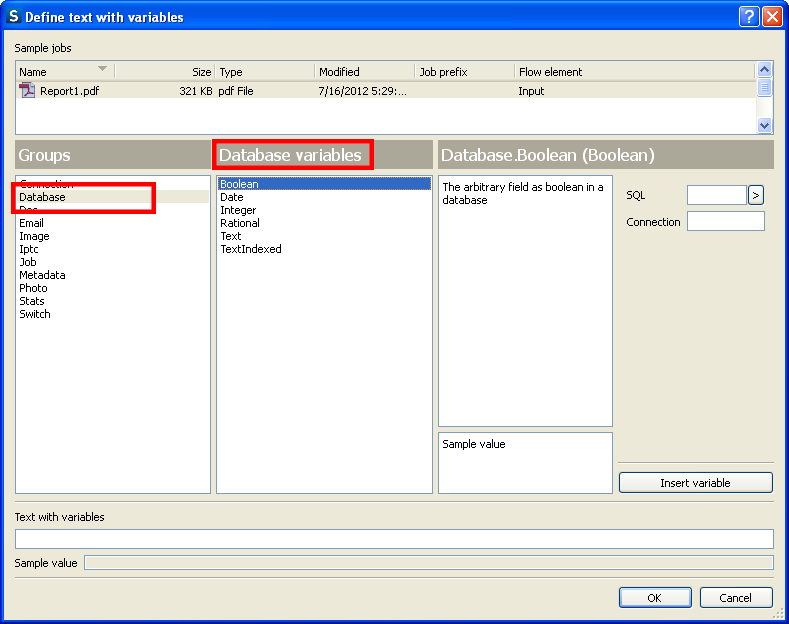
The table below lists the available data types.
|
Variable name |
Data type |
|---|---|
|
Database.Text |
Text |
|
Database.TextIndexed |
Text Indexed |
|
Database.Boolean |
Boolean |
|
Database.Integer |
Integer |
|
Database.Rational |
Rational |
| Database.Date | Date |
How to build an SQL statement?
After you have selected the Database group in the first column, and the data type in the second column, you must create an SQL statement. The Build SQL statement dialog box (see screenshot) will assist you in creating the SELECT statement and obtaining the appropriate values from the database.
Tip: We recommend using a sample job, so you can see immediately if your SQL statement is valid
and correct.
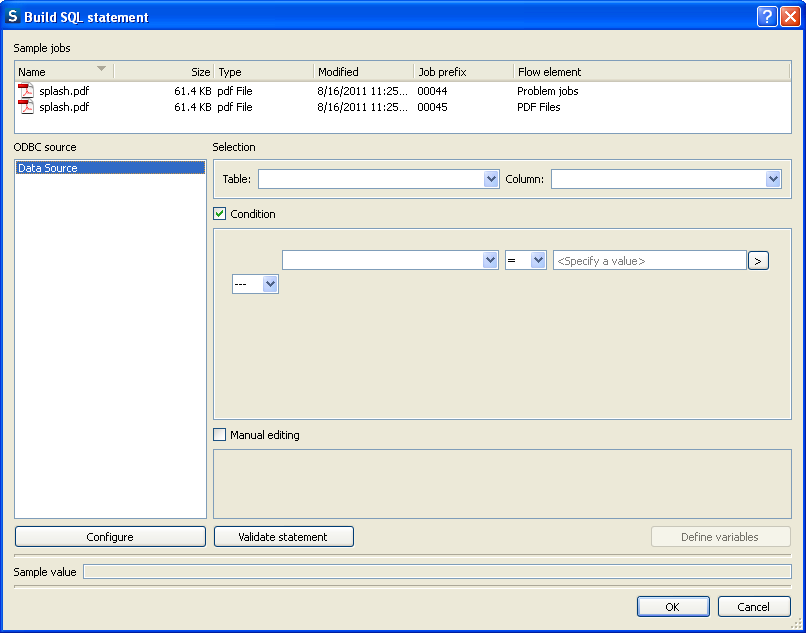
To build an SQL statement, proceed as follows:
- Click the
 button beside the SQL textbox and choose
Build SQL statement.
button beside the SQL textbox and choose
Build SQL statement. - Select a data source.
- Click the Configure button.
- In the ODBC data sources dialog, select a data source from the list of predefined data sources (Refer to ODBC data sources for more information on how to define the data sources).
- Select a table and a column in the Table and the Column drop-down menus.
- Select the Condition checkbox and specify or select the conditions in the first and the third menu, choose the comparison operator in the middle drop-down menu and choose the AND or OR logical operator in the last drop-down menu.
- Alternatively, in order to choose more than one column or to choose a column from any other table or not to choose any columns, select the Manual editing checkbox and enter the statement manually.
- After setting the SQL statement, click the Validate statement button to check if the query is valid. If the query returns any value or error, it is displayed on screen. The Sample value menu displays the sample value for a query. If a query returns multiple values, they will be listed in a comma separated list. For example: "val11,val12,val21,val22...".
- Click the OK button to insert the statement.