The Submit point and the Checkpoint tools allow defining metadata fields which can be viewed and/or edited by the Switch Web Portal user when submitting or routing a job. The values of display-only fields are determined by evaluating a script expression so that they can depend on metadata associated with the job. After a user submits a job or moves it along, the values of editable fields (as entered by the user) are associated with the job as metadata (with the client fields schema).
Defining metadata fields
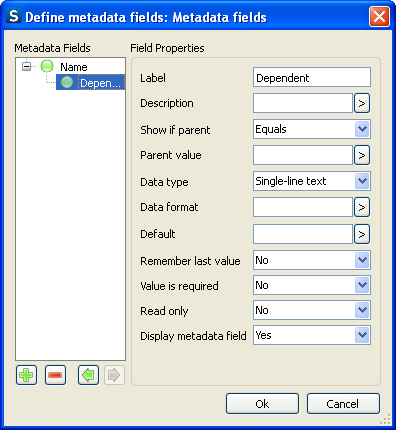
The property editor for editable metadata fields allows creating an ordered list of field definitions (using the buttons under the listbox on the left-hand side). For each field definition, the property editor allows editing the properties described in the table below (using the edit fields and controls on the right-hand side).
|
Property |
Description |
|---|---|
|
Label |
The label shown in front of the field. |
|
Description |
Description for this field shown as tool tip when user hovers over the label or the data field in the Switch Web Portal. |
| Show if parent |
In the dropdown menu, choose the condition for comparing parent value and dependent value. Options available are:
|
| Parent value | The value (string) of the parent field on which this child
field depends. Dependency is set using the arrow keys in the
field list. If you choose the "Matches" option for "Show if Parent" property then regular expression will be used for all parent values. |
|
Data type |
The field's data type: Dropdown list (Single-line text, Password, Date, Number, Hours and minutes, No-yes list, Dropdown list). |
|
Data format |
Only available when "Data type" is set to single-line text or number. Format the metadata field using a regular expression. Leave empty to not set any special formatting (Single-line text, Regular expression). |
| Data values | Only available when "Data type" is set to "Dropdown list". Define the drop down list (Edit multi-line text, Define multi-line text with variables, Define script expression, Define values from dataset, Define values from ODBC data source). |
|
Default |
The default value for the field (Single-line text, Single-line text with variable, Condition with variables, Date and Script expression). Using variables: It is possible to use variables to define the default value for your metadata field (Single-line text with variables, Condition with variables). However, most variables (e.g. doc author, page height, number of pages, ...) are not suited, as the requested information is only available after the job has been submitted to the Switch server. At the time of submitting the job, only the variables of the Switch variables group (e.g. date, flow name, server name, ...) are available and can be displayed to the user.Some examples:
Mismatches: In case "Data type" is Dropdown list with dynamically generated content, this default value might not correspond with one of the list items. In this case the "Default value" is empty in the Switch Web Portal. In case the "Data type" format and the default values format do not match, Switch tries to force the formatting of the data type property (example, Data type is hour and minute and the Default value is a text variable). If forcing is not possible, the Default value is empty in the Switch Web Portal. |
| Remember last value |
If set to "Yes", the most-recently value entered by the user (in this field) is displayed. In case "Data type" is Dropdown list with dynamically generated content, the previous value might become irrelevant. The previous value is however stored so we can also compare it with the content of the list. If the stored value matches one of the data values, then this value is shown. If the stored value no longer appears in the list, no value is shown. |
| Value is required | If set to "Yes", the user must enter a non-blank value (relevant only if Data type is string). |
| Read only | Set this to "Yes" to make this field read only. |
|
Display metadata field |
If set to "Yes" this field is displayed and when set to "No" it is hidden. See Using metadata and Defining metadata fields for more information. |
Update metadata
Click the button present below the Metadata fields list to access a dialog box which displays a two level tree: first level table tree of all Submit points (level 1) and second level for their metadata fields (level 2).
In the list, a Submit point can be checked (including all its fields) or an individual field can be selected. The fields that are checked are added to the Metadata fields list. Possible dependencies are preserved.
The fields from a Submit point are clearly marked (using color or some other mark). Therefore, user can distinguish such fields from a newly added Checkpoint field. All properties from these fields are grayed-out, except the Show if parent equals ... property, the Read only property and the Display metadata field property.
Behavior of updated fields in the Switch Web Portal
The metadata from the submit dataset is shown as the default value.
On the Switch Web Portal, users can read and change this data (if allowed). The new value is written to the check dataset. So technically, this is not a real update from the data but a copy from a field of one dataset (submit) to another (check). The Switch user can of course use the same name for the submit and check dataset. In this case the first dataset is overwritten.
If metadata fields are changed or added on a Submit point, the user will probably wish to update those fields in the Checkpoint too. Switch however does not offer an automatic update mechanism, so the user has to delete the field and re-import it again.
If users delete a field from a Submit point, they are also responsible for deleting that field from the Checkpoint metadata list as well. If a user does not remove the deleted field from the Checkpoint metadata list, then the field is still shown but the default value will then be empty.
Defining display-only fields
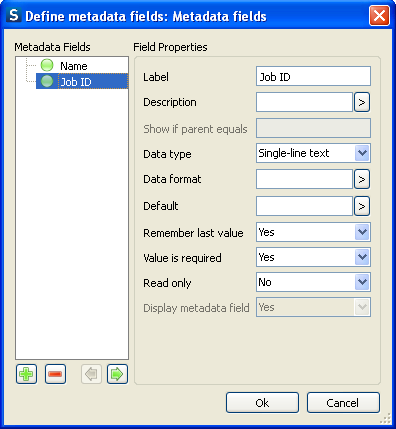
The property editor for display-only metadata fields allows creating an ordered list of field definitions (using the buttons under the listbox on the left-hand side). For each field definition, the property editor allows editing the properties described in the table below (using the edit fields and controls on the right-hand side).
|
Property |
Description |
|---|---|
|
Label |
The label shown in front of the field |
|
Description |
A hint displayed when the cursor hovers over the field |
|
Data type |
The field's data type: Boolean or string |
|
Calculated value |
A script expression that evaluates to the value of the metadata field; it is evaluated in the context of the job being viewed by the user so that it can use metadata associated with the job |