- Through the Switch Web Portal.
- By clicking the Messages button in the toolbar of the Switch Designer. Alternatively, you can press F6 or select .
Buttons and menus
| Button/menu | Description |
|---|---|

|
Shows the name of the user that logged in. If you click the icon See Changing the language of the Switch Web Portal. Note: If you open the Messages overview from within Switch, this option
is not available. In that case, the Messages overview is displayed in the
language of the Switch Designer.
|
 |
Opens a menu with the following options:
|
 |
If you click a column header, the sort and filter options are displayed. For
most columns, you can change the sort order (A-Z or Z-A) and/or set a filter (e.g.
only display the messages of the last x hour(s)/day(s), only the ones that contain
a certain string, ...). See also Filtering log messages. 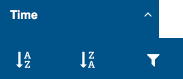 |
  |
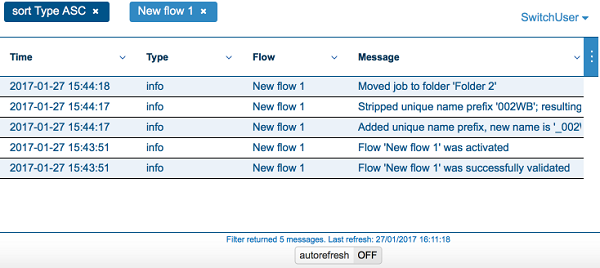
The applied filters are listed in the white space above the column headers. In this example, the dark blue label indicates that the messages are sorted by the values in the Type column, from A-Z (ascending). The light blue label indicates that only the messages triggered by "new flow 1" are shown. |
| autorefresh
|
Allows you to refresh the page automatically, to always have an up-to-date overview. When turned on (default), the button is blue; when turned off, the button is gray.You can enable this option only if the sort order of the "Time" column is set to "Descending (Z-A)". If you change the sort order, the autorefresh option is disabled automatically. |
 , you'll get a menu where you can
change the language and sign out as required.
, you'll get a menu where you can
change the language and sign out as required.

Columns
The following table describes the columns in the Messages overview.
Remember that you can hide columns as required via the icon in the top right corner . It's also possible to
resize the columns and to move them to another position (by dragging them sideways).
The Reset view option sets the columns to their default position and size and makes them all visible. This option is also accessible via the context menu of the Messages view.
Column |
Description |
|---|---|
Time |
Date and time when the message was triggered. |
Type |
Message type, indicating the severity level of the message (error, warning, info, debug or assert). See also the table below (Message types). |
Module |
The Switch module (such as Control) or type of flow element (such as folder) that triggered the message. |
Flow |
The name of the flow that triggered the message. |
Element |
The name of the flow element that triggered the message. |
Prefix |
The unique name prefix of the job referred to in the message, or blank if there is no unique name prefix. |
Job |
The name of the job for which this message was issued. |
Message |
The message itself. |
Message types
The following table describes the different types of messages that can appear in the Type column of the Messages overview.
Type |
Description |
|---|---|
Info |
An informational message that has no other purpose than to inform the user of a certain occurrence. Info messages are always shown in the Messages overview (unless a filter is applied). The Messages overview displays all types of info messages (related to Switch Server and to Switch Designer). |
Warning |
A warning message that informs the user of a recoverable problem or non-fatal error. Warnings are always shown (in orange) in the Messages overview (unless a filter is applied). |
Error |
An error message that informs the user of a fatal error. Errors are always shown (in red) in the Messages overview (unless a filter is applied). |
Debug |
An informational message solely intended for debugging purposes (often generated by configurators). Debug messages are not shown by default. If the Log debug messages preference is enabled, you can display them using a filter. Refer to Switch Preferences: Logging. |
Assert |
A message solely intended for debugging purposes that is issued only when a coding error is discovered. Assert messages are not shown by default. If the Log debug messages preference is enabled, you can display them using a filter. Refer to Refer to Switch Preferences: Logging. |