If you have the right permissions, you can view the log messages in a browser without having to open a Switch Designer. The permissions are set through the Users pane.
To view the log messages
- Sign in to the Switch Web Portal. See Signing in to the Switch Web Portal.
-
If the messages are not displayed, in the navigation area on the left, click
 Messages.
The most recent log messages are displayed, with a maximum of 1000
messages in total. If the autorefresh option is turned on (at the bottom of the
screen), the list is automatically renewed. By default, the list is sorted
chronologically, most recent messages at the top.
Messages.
The most recent log messages are displayed, with a maximum of 1000
messages in total. If the autorefresh option is turned on (at the bottom of the
screen), the list is automatically renewed. By default, the list is sorted
chronologically, most recent messages at the top. Remark:
- If the message text is too long to be displayed, you can turn on the Wrap text option.
- If you don't want to see all columns, you can hide some of them using the Columns option.
 on the right, below your user name (see
screenshot).
on the right, below your user name (see
screenshot).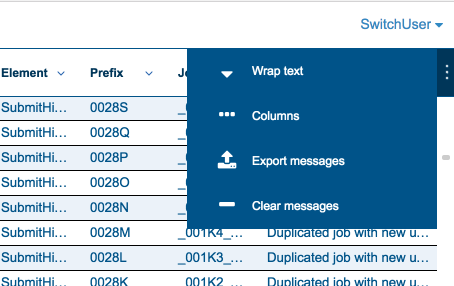
You can now sort the messages, filter out the messages you're not interested in, or export
messages as required. Refer to Filtering log messages, Sorting log messages and Exporting log messages.