Apps are sold through the Enfocus Appstore. You can only buy yearly subscriptions; monthly subscriptions and classic perpetual product licenses are not possible.
To purchase an app
- On the detail page of the app in the Enfocus Appstore, click the Buy now button.
- Sign in with your Enfocus ID and password as required.
- Follow the payment and registration instructions.
-
Assign the app to the Switch installation that you will use to work with the
app.
Note:
- If you have bought several licenses for the same app, you can assign each license seat to a particular Switch installation.
- If you don't want to assign the app yet to a particular Switch, click .. or assign all later. The app will not be installed locally (hence it cannot be used), but it remains available in the Enfocus Appstore (under My apps).
- Click Assign now. The app is downloaded to the assigned Swith installation(s).
-
Do one of the following:
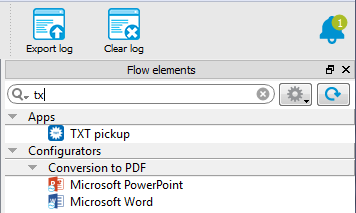
- If Switch is running, you can start using the app immediately by
clicking the Refresh apps button
 in the top right corner of the Flow elements
pane. This will install the app in your local Switch. Note: If you don't click the Refresh apps button, the app will be installed automatically next time you start Switch.
in the top right corner of the Flow elements
pane. This will install the app in your local Switch. Note: If you don't click the Refresh apps button, the app will be installed automatically next time you start Switch. - If Switch is not running, next time you sign into Switch, the app is installed automatically in the background. You don't have to do anything.
- If Switch is running, you can start using the app immediately by
clicking the Refresh apps button
You can now use the app just like any other flow element. You can use it in your
flows, define its properties, ... Apps also have a context menu (similar to the context
menu of the configurators) that you can use to check the app details, to renew your
subscription, or to uninstall the app if you don't need it anymore. See also Uninstalling an app.