If you have found an app that is interesting to you, you can start a free one-month trial.
To start a trial
- On the detail page of the app in the Enfocus Appstore, click the Try it for free button.
- Sign in with your Enfocus ID and password as required.
- Assign the app to the Switch installation that you will use to work with the app. By default, if you have more than one Switch, the app is assigned to all your Switch installations. If you don't want this, clear the checkbox(es) as required.
- Click Start free trial. The app is downloaded to the assigned Swith installation(s).
-
Do one of the following:
- If Switch is running, you can start using the app immediately by
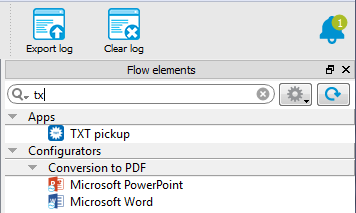
clicking the Refresh apps button
 in the top right corner of the Flow elements
pane. This will install the app in your local Switch. Note: If you don't click the Refresh apps button, the app will be installed automatically next time you start Switch.
in the top right corner of the Flow elements
pane. This will install the app in your local Switch. Note: If you don't click the Refresh apps button, the app will be installed automatically next time you start Switch. - If Switch is not running, next time you sign into Switch, the app is
installed automatically in the background. You don't have to do
anything.Note: If you start Switch without being signed in, the app will not be installed.
- If Switch is running, you can start using the app immediately by
clicking the Refresh apps button
You can now use the app just like any other flow element. You can use it in your
flows, define its properties, ... Apps also have a context menu (similar to the context
menu of the configurators) that you can use to check the app details, to manage your
subscription, ... When your trial is about to expire, you'll get a notification. If you
want to continue using the app, you'll have to buy a license. See Purchasing an app.