This topics describes how you can open the log messages overview in Switch. Alternatively, the message overview can be opened through the Switch Web Portal. See also Viewing log messages through the Switch Web Portal.
To view the log messages
-
In Switch, do one of the following:
- Click .
- Press F6.
- Click the Messages button in the Switch toolbar.
Remark:
- If the message text is too long to be displayed, you can turn on the Wrap text option.
- If you don't want to see all columns, you can hide some of them using the Columns option.
 on the right (see screenshot).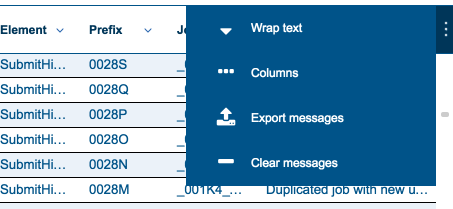
- The first time you open this view, you'll see a banner stating that cookies are used to enhance the user experience. Click Accept to allow Switch to save your preferences. If you accept cookies, your preferences are saved when closing your browser, so you don't have to set them next time you log in. If you click Do not use cookies, you can continue to work, but you will have to select your language again every time you log in in a new browser.
You can now sort the messages, filter out the messages you're not interested in, or
export messages. Refer to Filtering log messages,
Sorting log messages and Exporting log messages.