PitStop Pro
contains four default workspaces, which you can use immeditately, without having to
edit them.
| Workspace | Description |
|---|---|
| Hide PitStop Pro | Hides as much as possible from the PitStop Pro user interface. This allows you to work with Adobe Acrobat without unnecessary interference from PitStop Pro. |
| Manual Editing | Opens the control panels typically used to edit PDF files (such as the Enfocus Inspector). |
| Processing | Opens the Enfocus Processing panel, and contains settings typically used when performing semi-automated processing tasks (such as preflighting a document). |
| Show PitStop Pro | Shows all Enfocus toolbars. It can be used after using the "Hide PitStop Pro" workspace, to make all tools and toolbars visible again. |
Using a default workspace
To use a default workspace without changing it
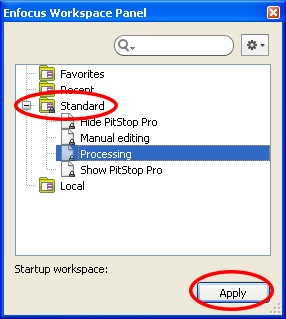
- Open the Enfocus Workspace Panel.
- Select the preferred workspace (under Standard).
- Click Apply.
Note: If you want to view or change the settings of a workspace, refer to Editing a workspace.